Tampilkan postingan dengan label pop. Tampilkan semua postingan

Remove Recommended for You Pop ups and Malware Uninstall Guide

Over the last few weeks, some of our readers have alerted us to the fact that they got some kind of malicious software that redirected web browsers to different 3rd party websites and displayed intrusive advertisements in the lower right hand corner of their computer screens. No joke. However, its a very common issue and sometimes its rather difficult to tell whether its caused by malware, browser helper object or just a useless web browser extension. Usually, web browser redirects are indeed caused by malware, mostly rootkits and Trojan horses, but thats not always the case. So, we decided to dig into the issue and trace the root of the problem.

Shortly after we ran a certain set of Trojans on our test machine, we found a sample (Trojan.Small.dac or Troj/RuinDl-Gen) that was responsible for the combination of the Recommended for You pop-ups and web browser redirects. The web browser redirects seem to happen at random or at least they didnt happen all the time. The Trojan horse displayed two different pop-up windows: an iPhone looking box with various advertisements and a smaller one with just random ads. It happened in Internet Explorer, Mozilla Firefox and Google Chrome. Cant blame the browser this time. Its probably a cross platform malware too. Besides, it happened on both 32-bit and 64-bit systems. Ads were not very intrusive, they didnt show up like every two or five minutes. Once you minimize the ad box, it doesnt appear until you restart your computer. Thats right, you cant close the ad box, when you click the "X" it just minimizes into a smaller box that says "Recommended for You".

An-iPhone looking ad box:


A smaller one, but still very annoying:


Recommended for You box:


Now, that we know the root of this problem (malware) we can take the appropriate actions. Running a full virus scan with anti-malware software is essential step towards solving the Recommended for You malware problem. Once the Trojan horse is gone, you need to replace Windows Host file since its partly responsible for web browser redirects and annoying pop-ups as well. Yes, the Trojan modifies Windows Hosts file making web browser inquiries a subject to redirect. To remove this malware from your computer, please follow the steps in the removal guide below. Should you need any further assistance, dont hesitate to contact us or just leave a comment below. Good luck and be safe online!

http://deletemalware.blogspot.com


Recommended for You malware removal instructions:

1. Download recommended anti-malware software (direct download) and run a full system scan to remove this malware from your computer.

3. To reset the Hosts file back to the default automatically, download and run Fix it and follow the steps in the Fix it wizard.

4. Remove files from Windows %Temp% folder.

Tell your friends:
Read More..

Remove pht gzipserver net pop up virus Removal Guide

Pht.gzipserver.net has been reported as unsafe due to misleading pop-up ads it delivers on infected computers. Its involved in malvertising campaign that attempts to deliver a malicious payload, mostly adware and potentially unwanted software. If this unwanted pop-up page comes up every so often then your computer is almost certainly infected with adware. This adware application uses a malicious web browser extension to display pop-ups when ever you click on a link or open a new tab. Below is an example of a misleading pop-up advertisement claiming that the media content is not shown properly. It recommends you to update your system player M.Player which I believe stands for Media Player.


The downloaded file bundles up potentially unwanted software and adware, so you shouldnt download it. Your computer is already infected, downloading additional malware onto your computer will make the situation even worse. You may easily end up installing spyware on your machine. Needles to say, its detected as malicious or potentially dangerous by most anti-virus scanners. Pht.gzipserver.net pop-up ads are usually displayed by web browser extensions called LyricsMonkey, LyricsSay, LyricsContainer, BestLyrics, etc. All these extensions fail to deliver what they promise: show lyrics next to each Youtube music video. But they do deliver ads very well.

So, the first thing you should do is identify the malicious web browser extension and remove it from your web browser. It could be any of those I just mentioned or it could be a completely new one but Im pretty sure it will have lyrics in its name. Then, you should scan your computer with anti-malware software because even though its pretty straightforward to remove web browser extensions that display pop-up ads there might be other malware installed on your computer. If you have any questions or difficulties removing the Pht.gzipserver.net pop up virus from the system, please leave a comment below. Good luck!

Written by Michael Kaur, http://deletemalware.blogspot.com


pht.gzipserver.net pop-up virus removal instructions:

1. First of all, download recommended anti-malware software and run a full system scan. It will detect and remove this infection from your computer. You may then follow the manual removal instructions below to remove the leftover traces of this malware. Hopefully you wont have to do that.


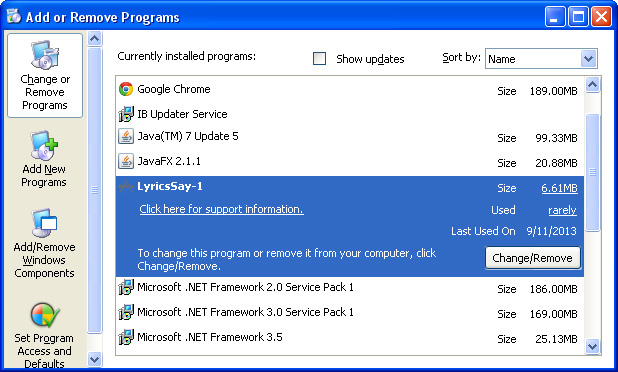
2. Remove pht.gzipserver.net related programs from your computer using the Add/Remove Programs control panel (Windows XP) or Uninstall a program control panel (Windows 7 and Windows 8).

Go to the Start Menu. Select Control PanelAdd/Remove Programs.
If you are using Windows Vista or Windows 7, select Control PanelUninstall a Program.


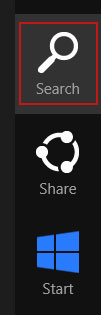
If you are using Windows 8, simply drag your mouse pointer to the right edge of the screen, select Search from the list and search for "control panel".


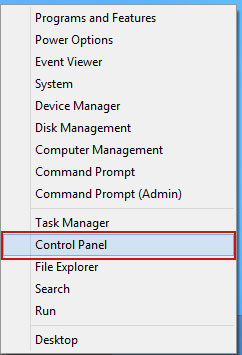
Or you can right-click on a bottom left hot corner (formerly known as the Start button) and select Control panel from there.


3. When the Add/Remove Programs or the Uninstall a Program screen is displayed, scroll through the list of currently installed programs and remove the following:
  • LyricsSay
  • LyricsMonkey
  • DownloadTerms
  • HD-Plus 3.5
  • and any other recently installed application


Simply select each application and click Remove. If you are using Windows Vista, Windows 7 or Windows 8, click Uninstall up near the top of that window. When youre done, please close the Control Panel screen.


Remove pht.gzipserver.net pop-ups from Google Chrome:

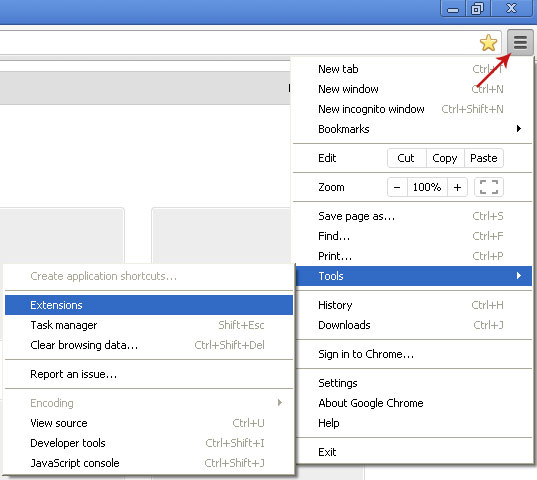
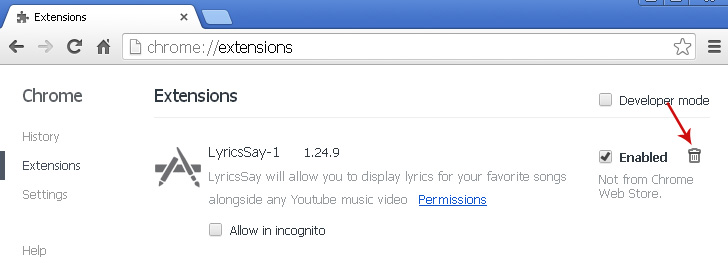
1. Click on Chrome menu button. Go to ToolsExtensions.


2. Click on the trashcan icon to remove LyricsSay, DownloadTerms, LyricsMonkey, HD-Plus 3.5 and other extensions that you do not recognize.


Remove pht.gzipserver.net pop-ups from Mozilla Firefox:

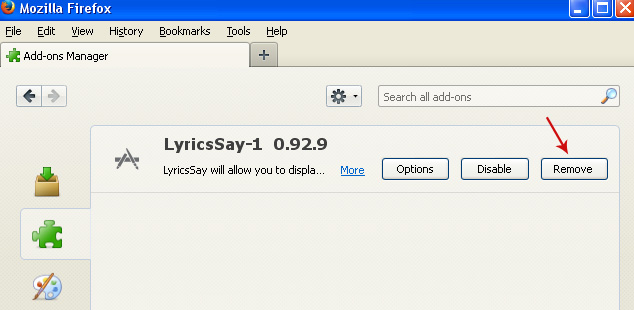
1. Open Mozilla Firefox. Go to ToolsAdd-ons.


2. Select Extensions. Click Remove button to remove LyricsSay, DownloadTerms, LyricsMonkey, HD-Plus 3.5 and other extensions that you do not recognize.


Remove pht.gzipserver.net pop-ups from Internet Explorer:

1. Open Internet Explorer. Go to ToolsManage Add-ons. If you have the latest version, simply click on the Settings button.


2. Select Toolbars and Extensions. Click Remove/Disable button to remove the browser add-ons listed above.

Read More..

Remove gip driverdiv net pop up virus Removal Guide

gip.driverdiv.net pop-ups are misleading, they falsely tell you that your web browser is outdated. In case you got it, just close the pop-up window and dont click anything in there. It may also prompt you to update your Java software, Video player (see image below) or Flash player. Its a malicious scam. If you keep getting any of these pop-ups then your computer is infected with adware or potentially unwanted program that uses web browser extensions to display intrusive and annoying ads. To stop gip.driverdiv.net pop-ups and remove related malware from your computer, please use the removal guide below.


In fact, its a common type of online attack in which scammers try to trick you into installing adware and PUP. Even though, the gip.driverdiv.net site seems to be pretty new, this unethical marketing scheme to say the least isnt new at all. The adware is designed to display pop-up ads with almost every click in Chrome, Firefox or Interner Explorer. Ads may appear when you open a new tab as well. Very often, this adware infection leads to unwanted sluggish performance. This adware installs registry information that loads during computer start up. As you probably know, when too many programs are running at one time, your computers operating system may seem slow or sluggish.

Once youve made the determination your computer has adware or PUP, the most painless way to begin is to download and run recommended anti-malware program. If you still see popups, or suspect adware is still hiding out on your computer, I recommend following the removal guide below. Last, but not least, reinstalling your web browser wont help you this time. This infection is way too complex, therefore doing so almost certainly wont fix your adware and pop-up problems. If you have any questions, please leave a comment below. I will gladly answer them. Good luck and be safe online!

Written by Michael Kaur, http://deletemalware.blogspot.com


gip.driverdiv.net pop-up removal instructions:

1. First of all, download anti-malware software and run a full system scan. It will detect and remove this infection from your computer. You may then follow the manual removal instructions below to remove the leftover traces of this malware. Hopefully you wont have to do that.


2. Remove gip.driverdiv.net related programs from your computer using the Add/Remove Programs control panel (Windows XP) or Uninstall a program control panel (Windows 7 and Windows 8).

Go to the Start Menu. Select Control PanelAdd/Remove Programs.
If you are using Windows Vista or Windows 7, select Control PanelUninstall a Program.


If you are using Windows 8, simply drag your mouse pointer to the right edge of the screen, select Search from the list and search for "control panel".


Or you can right-click on a bottom left hot corner (formerly known as the Start button) and select Control panel from there.


3. When the Add/Remove Programs or the Uninstall a Program screen is displayed, scroll through the list of currently installed programs and remove the following:
  • PassShow
  • LyricsSay
  • Websteroids
  • ScorpionSaver
  • HD-Plus 3.5
  • and any other recently installed application


Simply select each application and click Remove. If you are using Windows Vista, Windows 7 or Windows 8, click Uninstall up near the top of that window. When youre done, please close the Control Panel screen.


Remove gip.driverdiv.net pop-ups from Google Chrome:

1. Click on Chrome menu button. Go to ToolsExtensions.


2. Click on the trashcan icon to remove LyricsSay, PassShow, Websteroids, HD-Plus 3.5 and other extensions that you do not recognize.


Remove gip.driverdiv.net pop-ups from Mozilla Firefox:

1. Open Mozilla Firefox. Go to ToolsAdd-ons.


2. Select Extensions. Click Remove button to remove LyricsSay, PassShow, Websteroids, HD-Plus 3.5 and other extensions that you do not recognize.


Remove gip.driverdiv.net pop-ups from Internet Explorer:

1. Open Internet Explorer. Go to ToolsManage Add-ons. If you have the latest version, simply click on the Settings button.


2. Select Toolbars and Extensions. Click Remove/Disable button to remove the browser add-ons listed above.

Read More..

Phone Shaped Pop ups In Lower Right Hand Corner and Random Redirects Uninstall Guide

Some of our readers have been having an awful time trying to remove malicious software that constantly redirects them to spam or even malicious websites while browsing the net and displays either a square or phone shaped pop-up in the bottom right hand corner of their web browsers. Sometimes a pop-up window resembles a video screen of ads, please see the images below.

Previously, we wrote about Trojans horses that had a very similar payload. These Trojans displayed "Recommended for You" pop-ups in the lower corner of the web browser. It actually doesnt matter which browser you use because this happens on all major web browsers, whether it would be Internet Explorer, Mozilla Firefox or Google Chrome. Cyber criminals decided to remove "Recommended for You" notification from their ads probably because victims could easily Google this text and find out that their computers are infected with malicious software. Now, they usually display a smart phone shaped ads with links and also video screen ads.

Here’s what a typical phone shaped ad looks like:


And here’s another one titled "you are missing a plugin to play videos".


A slightly different approach but we believe its still very effective. At the time of writing, this fake fake video update ad was redirecting users to two different websites but they both promoted the same free video player. Most likely, cyber crooks earned commissions from every successful install they made. While thats clearly not the most profitable traffic monetization model we’ve seen so far, it’s still an option and cyber crooks successfully use it.

We found at least three different Trojans horses that have exactly the same payloads: web browser redirect + annoying phone shaped pop-ups. Of course, there might be hundreds of them but we were looking at the most popular ones. All these Trojans displayed pop-ups in the bottom right hand corner of the web browsers and redirected users to spam websites. Now, one of those Trojans used very aggressive methods o hide its presence on the infected computer. It even made our antivirus software to disappear. That means we have encountered different families of Trojans.

What is more, very often these Trojans come bundled with rootkits which makes the removal procedure a lot more complicated than just simply removing a Trojan horse. Most antivirus programs handle Trojan horses very well but fail to remove rootkits. Thankfully, you can use free utilities to remove rootkits from infected computers, for example TDSSKiller, if your antivirus program cant remove them.

One more thing about this infection – it changes Windows Hosts file. Normally, it doesnt lock the Hosts file itself but weve seen a couple of Trojans that not only changes the file so that it would load spammy sites but also prevent further modifications. So, if you can remove malicious lines manually, please use this great Microsoft utility called "Fix it".

To remove phone shaped pop-ups in the bottom right hand corner of your web browser, please follow the removal instructions below. Should you need any further assistance, dont hesitate to contact us or just leave a comment below. Good luck and be safe online!

http://deletemalware.blogspot.com


Removal instructions:

1. Download recommended anti-malware software (direct download) and run a full system scan to remove this malware from your computer.

3. To reset the Hosts file back to the default automatically, download and run Fix it and follow the steps in the Fix it wizard.

4. Remove files from Windows %Temp% folder.

Tell your friends:
Read More..

Remove dfs pathdone net pop up virus Removal Guide

dfs.pathdone.net is a browser hijacker but most people would say its a pop-up virus. Of course, the virus isnt a pop-up, it appears in a new tab, to be specific. Whenever you open a new link from Google, Bing or simply go onto a new webpage, the new tab opens along with another which shows a pop-up advertisement. The ads vary in item, but theres a good chance that you will get a pop-up saying that you need to install Flash player downloader, FLV player or something else which is "recommended". Never install or update Flash from a pop-up on a website because you may end up installing adware and spyware on your computer.


It is pretty easy to tell when youve had your browser hijacked but the worse thing is that this can be a rather persistent infection. Dfs.pathdone.net pop-ups are just after effects. If you want to stop these pop-ups, you will have to identify and remove malware that causes them. As you may already know, all major download websites have their own download managers and before pretty much any download they offer you to install third-party applications, for instance, LyricsSay. I always decline these offers, you should do the same thing as well because even such an innocent application as LyricsSay which automatically displays song lyrics on Youtube can inject ads and display annoying pop-ups. Another source of such malware is free movie streaming websites. I noticed that some live streaming video sites promote these browser hijacker too. They usually display misleading advertisements above the player or on the top of the video. Remember, all you need to watch videos online is a Flash player and you can get it from adobe.com without any bloatware, adware and other potentially unwanted applications.

Furthermore, malware that causes dfs.pathdone.net pop-ups can gather information about your browsing habits, including visited websites, Google search queries and similar stuff. All the information is later used to display more relevant ads and who knows maybe even sold for marketing companies. So, its not just a pop-up problem, this malware can spy on you. Of course, it cant steal your passwords, etc., but its still an issue.

The good news is that dfs.pathdone.net is installed on your computer as legitimate programs, it may well appear in the Add/Remove programs list in your control panel. If this is so, you can get rid of it quickly and easily. Needless to say, it wont be listed as pathdone.net but rather as LyricsSay or DownloadTersm. These are just a few examples, scammers are really smart, they create rename their applications very often. One day it can be LyricsSay and another day it will be LyricsContainer or something like that. If you cant find it, then please follow the removal instructions below. Theres a good chance that gqs.donedrive.net problem is caused by malicious browser extension installed by a third-party software. You will find all the details below. If you have questions, please leave a comment. Good luck and be safe online!

Written by Michael Kaur, http://deletemalware.blogspot.com


dfs.pathdone.net pop-up virus removal instructions:

1. First of all, download recommended anti-malware software and run a full system scan. It will detect and remove this infection from your computer. You may then follow the manual removal instructions below to remove the leftover traces of this malware. Hopefully you wont have to do that.


2. Remove dfs.pathdone.net related programs from your computer using the Add/Remove Programs control panel (Windows XP) or Uninstall a program control panel (Windows 7 and Windows 8).

Go to the Start Menu. Select Control PanelAdd/Remove Programs.
If you are using Windows Vista or Windows 7, select Control PanelUninstall a Program.


If you are using Windows 8, simply drag your mouse pointer to the right edge of the screen, select Search from the list and search for "control panel".


Or you can right-click on a bottom left hot corner (formerly known as the Start button) and select Control panel from there.


3. When the Add/Remove Programs or the Uninstall a Program screen is displayed, scroll through the list of currently installed programs and remove the following:
  • LyricsSay
  • LyricXeeker
  • DownloadTerms
  • HD-Plus
  • and any other recently installed application


Simply select each application and click Remove. If you are using Windows Vista, Windows 7 or Windows 8, click Uninstall up near the top of that window. When youre done, please close the Control Panel screen.


Remove dfs.pathdone.net pop-ups from Google Chrome:

1. Click on Chrome menu button. Go to ToolsExtensions.


2. Click on the trashcan icon to remove LyricsSay, DownloadTerms, LyricXeeker, HD-Plus and other extensions that you do not recognize.


Remove dfs.pathdone.net pop-ups from Mozilla Firefox:

1. Open Mozilla Firefox. Go to ToolsAdd-ons.


2. Select Extensions. Click Remove button to remove LyricsSay, DownloadTerms, LyricXeeker, HD-Plus and other extensions that you do not recognize.


Remove dfs.pathdone.net pop-ups from Internet Explorer:

1. Open Internet Explorer. Go to ToolsManage Add-ons. If you have the latest version, simply click on the Settings button.


2. Select Toolbars and Extensions. Click Remove/Disable button to remove the browser add-ons listed above.

Read More..

How can I get rid of rvzr2 a akamaihd net pop ups

Rvzr2-a.akamaihd.net pop-ups can only mean one thing - your computer is infected with adware, for example ScorpionSaver or Websteroids. You will have to identify the adware program that is causing these pop-ups yourself or use anti-malware tools to detect it automatically because there are way too many programs that could display pop-ups from rvzr2-a.akamaihd.net web server. It would be really difficult to find and list each and every adware program here. Thankfully, most of the time, you can identify the offending piece if code very easily. Please note that Akamaihd.net has nothing to do with adware campaigns or intrusive and misleading pop-ups. Its a popular service, unfortunately even among scammers. To stop Rvzr2-a.akamaihd.net pop-ups on your computer, please follow the removal guide below.

Heres an example of a pop-up you will get when your computer is infected with BetterSurf adware. You can find the name of your adware program at the top-right corner of the pop-up. As you can see, in this example, it says Ads by BetterSurf which means that you need to uninstall a program called BetterSurf and related adware from your computer.


In this case, the pop-up from rvzr2-a.akamaihd.net says that I need to update Java. However, it didnt even check what version of Java Im currently using. What is more, it uses a download manager to download Java updater when in fact you can download it directly from Oracle website. The software downloaser is detected as Adware.Downware.1676, Win32/OutBrowse, DomainIQ by multiple anti-virus scanners, scans results. As you may already know, such software downloaders offer users to install additional software, mostly toolbars, browser hijackers and adware. Dont use third-party software downloaders and if you must then read everything very carefully and decline any offer you may get. Otherwise, you will probably end up with adware on your computer.

Written by Michael Kaur, http://deletemalware.blogspot.com


rvzr2-a.akamaihd.net pop-up removal instructions:

1. First of all, download anti-malware software and run a full system scan. It will detect and remove this infection from your computer. You may then follow the manual removal instructions below to remove the leftover traces of this malware. Hopefully you wont have to do that.


2. Remove rvzr2-a.akamaihd.net related programs from your computer using the Add/Remove Programs control panel (Windows XP) or Uninstall a program control panel (Windows 7 and Windows 8).

Go to the Start Menu. Select Control PanelAdd/Remove Programs.
If you are using Windows Vista or Windows 7, select Control PanelUninstall a Program.


If you are using Windows 8, simply drag your mouse pointer to the right edge of the screen, select Search from the list and search for "control panel".


Or you can right-click on a bottom left hot corner (formerly known as the Start button) and select Control panel from there.


3. When the Add/Remove Programs or the Uninstall a Program screen is displayed, scroll through the list of currently installed programs and remove the following:
  • LyricsSay
  • Websteroids
  • ScorpionSaver
  • HD-Plus 3.5
  • and any other recently installed application


Simply select each application and click Remove. If you are using Windows Vista, Windows 7 or Windows 8, click Uninstall up near the top of that window. When youre done, please close the Control Panel screen.


Remove rvzr2-a.akamaihd.net pop-ups from Google Chrome:

1. Click on Chrome menu button. Go to ToolsExtensions.


2. Click on the trashcan icon to remove LyricsSay, Websteroids, HD-Plus 3.5 and other extensions that you do not recognize.


Remove rvzr2-a.akamaihd.net pop-ups from Mozilla Firefox:

1. Open Mozilla Firefox. Go to ToolsAdd-ons.


2. Select Extensions. Click Remove button to remove LyricsSay, Websteroids, HD-Plus 3.5 and other extensions that you do not recognize.


Remove rvzr2-a.akamaihd.net pop-ups from Internet Explorer:

1. Open Internet Explorer. Go to ToolsManage Add-ons. If you have the latest version, simply click on the Settings button.


2. Select Toolbars and Extensions. Click Remove/Disable button to remove the browser add-ons listed above.

Read More..

Remove static icmapp com pop up Removal Guide

If you keep getting static.icmapp.com pop-ups telling you to update Flash, Java or improve your PC performance then your computer is infected with adware, mostly likely a strain of CrossRider. This adware isnt new. It is being delivered via cleverly disguised browser extensions designed to run across multiple Web browsers and operating systems. Not only it displays pop-ups but may also display advertisements in certain social networking sites or replace ads with its own in Web browsers and collect information about you and your browsing habits, including such sensitive information as IP address, location, and Web browser information, OS, and even browsing history. Without a doubt, its a security risk. Not to mention that those pop-ups are very annoying and intrusive. I recommend you to remove it from your computer. To stop static.icmapp.com pop-ups and remove related adware/PUP, please follow the steps in the removal guide below.

Heres an example of a pop-up you may get. As you can see, the ad is very misleading, it claims that infected files have corrupted your Flash Player.

http://static.icmapp.com/blank2.html.....


Another one, looks like a warning asking for your attention because your PC supposedly needs to be repaired. This is a statement thats completely untrue.


I also saw a few pop-ups with gambling ads and clearly fake "lose weight" formulas. Needles to say, its a scam. Clicking on any of these ads will start a download of adware or PUP. As a result your computer may become even more infected as it is already. My advice would be to close all the pop-ups immediately and scan your computer with anti-malware software.

I think its also worth mentioning that static.icmapp.com pop-up may appear if your computer is infected with adware other than CrossRider. At least a few adware families share the same ad networks so its not surprising at all that they display the same pop-ups. It might be difficult to identify adware that causes these pop-ups, especially when its may be listed under different names, probably to avoid manual removal.

Static.icmapp.com related adware is usually bundled with freeware. Its very important that you pay attention to the license agreements and installation screens when installing anything. If an installation screen offers you Custom or Advanced installation options, it is a good idea to select these as they will typically disclose what other 3rd party software will also be installed and allow you to opt out of them. If you have any questions, please leave a comment below. Good luck and be safe online!

Written by Michael Kaur, http://deletemalware.blogspot.com


static.icmapp.com pop-up removal instructions:

1. First of all, download anti-malware software and run a full system scan. It will detect and remove this infection from your computer. You may then follow the manual removal instructions below to remove the leftover traces of this malware. Hopefully you wont have to do that.


2. Remove static.icmapp.com related programs from your computer using the Add/Remove Programs control panel (Windows XP) or Uninstall a program control panel (Windows 7 and Windows 8).

Go to the Start Menu. Select Control PanelAdd/Remove Programs.
If you are using Windows Vista or Windows 7, select Control PanelUninstall a Program.


If you are using Windows 8, simply drag your mouse pointer to the right edge of the screen, select Search from the list and search for "control panel".


Or you can right-click on a bottom left hot corner (formerly known as the Start button) and select Control panel from there.


3. When the Add/Remove Programs or the Uninstall a Program screen is displayed, scroll through the list of currently installed programs and remove the following:
  • LyricsSay
  • CrossRider
  • Websteroids
  • ScorpionSaver
  • HD-Plus 3.5
  • and any other recently installed application


Simply select each application and click Remove. If you are using Windows Vista, Windows 7 or Windows 8, click Uninstall up near the top of that window. When youre done, please close the Control Panel screen.


Remove static.icmapp.com pop-ups from Google Chrome:

1. Click on Chrome menu button. Go to ToolsExtensions.


2. Click on the trashcan icon to remove LyricsSay, CrossRider, Websteroids, HD-Plus 3.5 and other extensions that you do not recognize.


Remove static.icmapp.com pop-ups from Mozilla Firefox:

1. Open Mozilla Firefox. Go to ToolsAdd-ons.


2. Select Extensions. Click Remove button to remove LyricsSay, CrossRider, Websteroids, HD-Plus 3.5 and other extensions that you do not recognize.


Remove static.icmapp.com pop-ups from Internet Explorer:

1. Open Internet Explorer. Go to ToolsManage Add-ons. If you have the latest version, simply click on the Settings button.


2. Select Toolbars and Extensions. Click Remove/Disable button to remove the browser add-ons listed above.

Read More..