Tampilkan postingan dengan label guide. Tampilkan semua postingan

PUP CNET Adware Bundle Uninstall Guide

PUP.CNET.Adware.Bundle stands for potentially unwanted program, CNETs own installer that wraps a limited number of Windows software downloads in a CBS Interactive/CNET bundle which attempts to download and install sponsored software, mostly toolbars (at least its the Blekko toolbar at the moment). In other words, when you download a program from download.com you may get CNETs proprietary installer, not the the softwares installer. The downloaded file name begins with cnet_ or cnet2_, heres an example: cnet2_freeocr_exe.


If you install recommended toolbar or any other utility, 3rd party advertisers may track what you do on the internet to target you with products. Thats the main reason why CNETs installer is detected by some anti-virus products as adware, PUP.CNET.Adware.Bundle and even a Trojan, although there are others. First of all, it can be a violation of a programs distribution terms. Secondly, users are likely to blame the software authors if something goes wrong with the sponsored software. But its clearly CNETs fault.

The actual installation is a 4 step process. The logical progression of CNETs wrapper software makes it very easy to accept sponsored software by default, especially for unwary users who dont take much notice of installer screens and tend to simply click Next, Next, Next. This is the third major problem with PUP.CNET.Adware.Bundle - all the special offers and extras are enabled by default, what is known as an Opt Out system.


In our case, PUP.CNET.Adware.Bundle wanted us to install Blekko toolbar and change our default search engine to blekko.com.

Detection:
  • Adware.Downloader-207, ClamAV
  • Adware.Downware.130, DrWeb
  • Win32.Trojan, eSafe
  • Win32/InstallCore.D, NOD32
  • PUP.CNET.Adware.Bundle, Malwarebytes Anti-Malware
Some people say its a terrible idea while others are more tolerant of such practice. In terms of computer security, PUP.CNET.Adware.Bundle isnt a huge security threat. Although, CNET may attempt to install software detected as adware by some anti-virus products, its actually nothing more than PUP. Its not spyware. After all, you can simply uninstall both CNETs installer and sponsored software from your computer. Besides, its always a good idea to download software directly from the official website whenever possible. Or you can click the "Direct Download Link" instead of "Download Now" and you will get a pure installer, without extras.


By the way, what do you think about this new installer method? Good luck and be safe online!


Scan your computer with recommended anti-malware and clean-up software:

Download recommended anti-malware and clean-up software and run a full system scan to make sure that your computer is not infected with malicious or potentially unwanted applications and that your files are not corrupted before proceeding with the uninstall process.

Tell your friends:
Read More..

How to Remove Windows Risk Eliminator Uninstall Guide

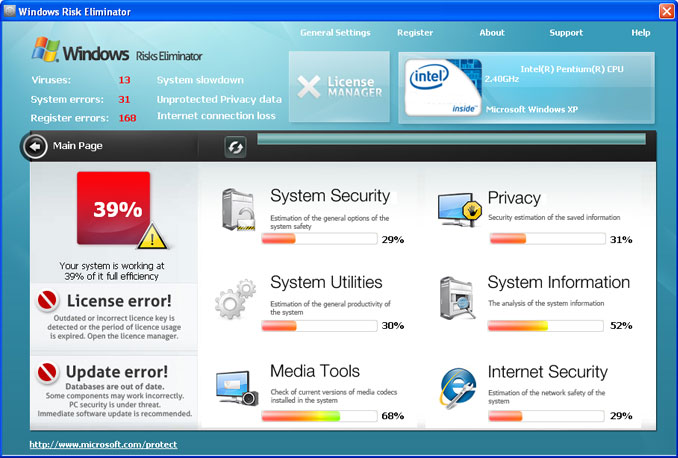
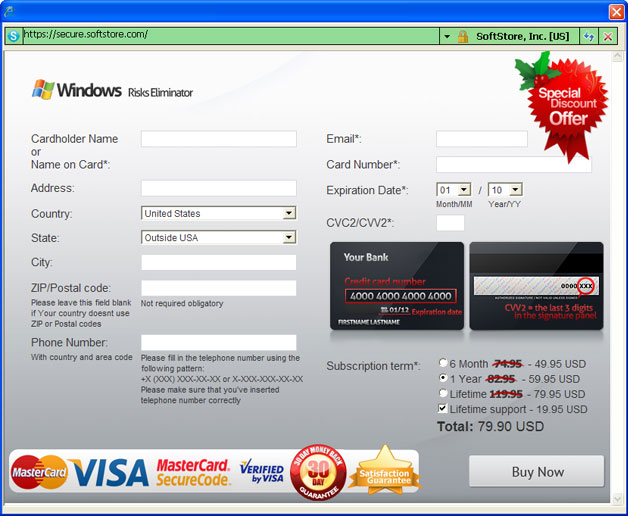
Windows Risk Eliminator is a malicious program that uses a number of misleading techniques to make a hefty profit out of unsuspecting victims. This program is classified as a rogue security tool because it pretends to scan your computer for malware and reports system threats which do not even exist. Cyber-criminals spread their malware through the use of Trojan Downloader and fake online scanners. Victims are typically tricked into paying for additional tools or services. This rogue costs almost $80 with a lifetime support. You can get perfectly legitimate anti-malware software for about $40. Windows Risk Eliminator gives a false sense of security. It displays fake security alerts and notifications saying that your computer is infected with some sort of malware. Furthermore, Windows Risk Eliminator claims that you can make your computer run faster if you pay for a additional tools that will fix numerous system/registry errors. Please do not fall victim to this scam and remove Windows Risk Eliminator from your computer as soon as possible. What is more, this scareware blocks other programs on the victims computer. It blocks web browsers, task manager, registry editor and of course anti-malware software. Thankfully, weve got the step-by-step removal instructions to help you to remove Windows Risk Eliminator malware. Last, but not least, if you have purchased this bogus program, please contact your credit card company and dispute the charges. If you need help removing Windows Risk Eliminator, please leave comment. You can post additional information about this rogue too. Good luck and be safe online!

Windows Risk Eliminator is from the same family as Windows Universal Tool, Windows Utility Tool, and Windows Security & Control.


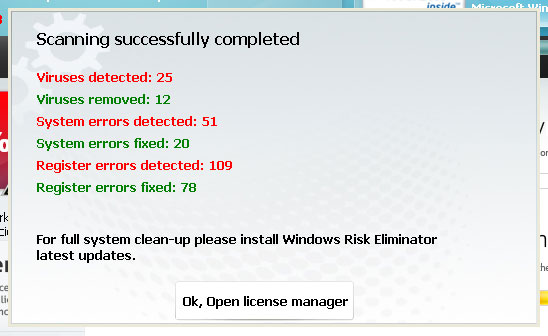
Fake Windows Risk Eliminator scan results:


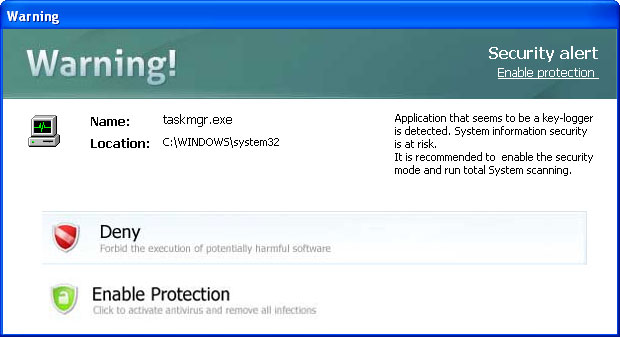
Fake security alert saying that taskmgr.exe is a key-logger:


A web form where you can purchase Windows Risk Eliminator:


Windows Risk Eliminator removal instructions:

1. Rename the main executable of Windows Risk Eliminator:

In Windows XP:
C:Documents and Settings[UserName]Application Data[SET OF RANDOM CHARACTERS].exe

In Windows Vista/7:
C:Users[UserName]AppDataRoaming[SET OF RANDOM CHARACTERS].exe


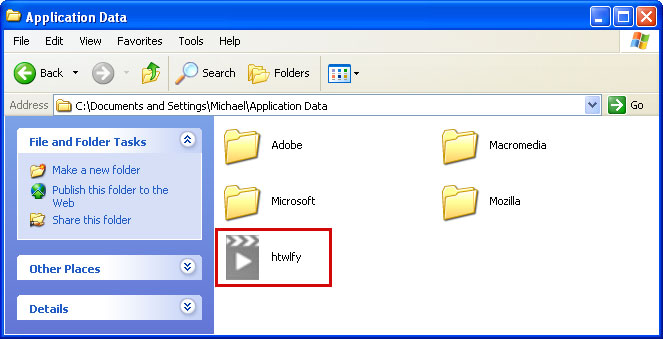
Look for htwlfy or similar file and rename it to malware. Then restart your computer. This should disable Windows Risk Eliminator. After reboot, please continue with the rest of the removal process. NOTE: By default, Application Data folder is hidden. If you can find it, please read Show Hidden Files and Folders in Windows.

OR you can download Process Explorer and end Windows Risk Eliminator process.

2. Download shell-fix.reg. Double-click to run it. Click "Yes" when it asks if you want to add the information to the registry. This file will fix the Windows Shell entry.
3. Download free anti-malware software from the list below and run a full system scan.
NOTE: in some cases the rogue program may block anti-malware software. Before saving the selected program onto your computer, you may have to rename the installer to iexplore.exe or winlogon.exe With all of these tools, if running Windows 7 or Vista they MUST be run as administrator. Launch the program and follow the prompts. Dont forget to update the installed program before scanning.

4. New threats appear every day. In order to protect your PC from such (new) infections we strongly recommend you to use ESET NOD32 Antivirus.


Alternate Windows Risk Eliminator removal instructions (in Safe Mode with Networking):

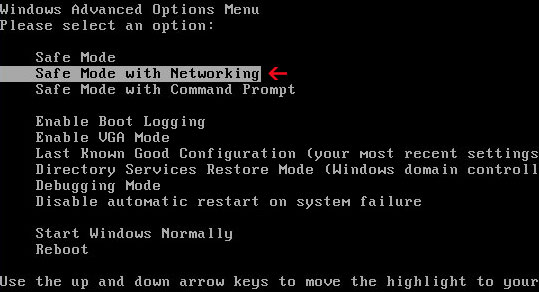
1. Reboot your computer is "Safe Mode with Networking". As the computer is booting tap the "F8 key" continuously which should bring up the "Windows Advanced Options Menu" as shown below. Use your arrow keys to move to "Safe Mode with Networking" and press Enter key. Read more detailed instructions here: http://www.computerhope.com/issues/chsafe.htm


NOTE: Login as the same user you were previously logged in with in the normal Windows mode.

2. Download free anti-malware software from the list below and run a full system scan.
NOTE: in some cases the rogue program may block anti-malware software. Before saving the selected program onto your computer, you may have to rename the installer to iexplore.exe or winlogon.exe With all of these tools, if running Windows 7 or Vista they MUST be run as administrator. Launch the program and follow the prompts. Dont forget to update the installed program before scanning.

3. New threats appear every day. In order to protect your PC from such (new) infections we strongly recommend you to use ESET NOD32 Antivirus.


Associated Windows Risk Eliminator files and registry values:

Files:

In Windows XP:
  • C:Documents and Settings[UserName]Application Data[SET OF RANDOM CHARACTERS].exe
In Windows Vista/7:
  • C:Users[UserName]AppDataRoaming[SET OF RANDOM CHARACTERS].exe
Registry values:
  • HKEY_CURRENT_USERSoftwareMicrosoftWindows NTCurrentVersionWinlogon "Shell" = "%UserProfile%Application Data[SET OF RANDOM CHARACTERS]"
Share this information with other people:
Read More..

Remove Ads by LyricsSay Virus Removal Guide

"Ads by LyricsSay" is a new bit of adware for Windows but it may work just fine on Mac too. This adware install a web browser extension (add-on) and begins to display ads on web sites that normally do not contain those ads, including popular sites like Youtube, Facebook or Ebay. The same malicious extension may display inline advertisements, you know when words get underlined and hovering over them shows popup ads, for example Monstermarketplace. Its difficult to say whether it is legit or not but unfortunately its not detected by many anti-virus programs. However, it think it should be. No one likes adware, especially when annoying ads are injected without your knowledge or agreement. The LyricsSay extension for instance which is used to load those ads is useless. Even though, it claims to display lyrics for pretty much every song on Youtube the only thing Ive seen so far is a bunch of ads. This particual adware that displays "Ads by LyricsSay" ads is closely related to dfs.pathdone.net browser hijacker. It may pop up whenever you open a new tab or click on a link. Each ad displayed by LyricsSay adware can be disabled by visiting pathdone.net, at least this is what adware creators say. However, I dont think you should simply disable adware and think that your computer is perfectly fine now. It would be a lot better if you uninstalled it and ran a full malware scan. As you may already know, such applications are very often bundled with toolbars, browser hijackers and even spyware. If you find yourself infected with "Ads by LyricsSay" virus, please follow the removal instructions below.


At one time or another weve all been targeted by these nuisances but the fifty million dollar question is, how do they get on to our computers in the first place - and how can we stop them? "Ads by LyricsSay" has a number of unwelcome traits. One being that it will normally download additional adware onto your computer and as most of us know, it can be intensely annoying thanks to its pop up advertising windows. If youve been infected you may well be wondering how the LyricsSay wormed its way onto your PC or laptop in the first place. Well I hate to break it to you but you might actually have installed it yourself. Ads by LyricsSay is usually bundled with freeware which means that anything you download without paying for can put you at risk. The big question is, how do you avoid doing this and how can you ensure youre not inadvertently exposing yourself to adware or something that can cause even more harm?

Anti-malware, anti-malware, anti-malware! We cant say it enough - using your PC without having anti-malware software installed is like playing Russian roulette! But that aside, you can also help yourself by being a little more wary about what you install on your computer. If youre thinking of downloading something from a website that is covered in spammy looking adverts and dodgy links then stop and ask yourself whether you could be downloading the software from somewhere more reputable. Also check the end user license agreement when you download something as PUPs come packaged with other programs. Most agreements make reference to ‘other applications’ so don’t just click ‘OK’ or ‘Continue’ but read the agreement and uncheck any boxes that were already opting you in for an (unwanted) added extra. Good luck and be safe online!

Written by Michael Kaur, http://deletemalware.blogspot.com


"Ads by LyricsSay" removal instructions:

1. First of all, download recommended anti-malware software and run a full system scan. It will detect and remove this infection from your computer. You may then follow the manual removal instructions below to remove the leftover traces of this malware. Hopefully you wont have to do that.


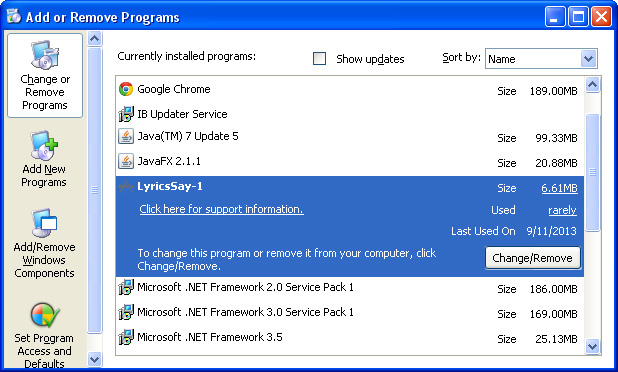
2. Remove LyricsSay and related programs from your computer using the Add/Remove Programs control panel (Windows XP) or Uninstall a program control panel (Windows 7 and Windows 8).

Go to the Start Menu. Select Control PanelAdd/Remove Programs.
If you are using Windows Vista or Windows 7, select Control PanelUninstall a Program.


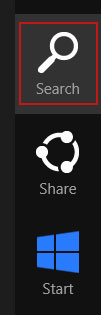
If you are using Windows 8, simply drag your mouse pointer to the right edge of the screen, select Search from the list and search for "control panel".


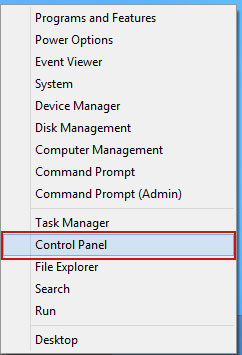
Or you can right-click on a bottom left hot corner (formerly known as the Start button) and select Control panel from there.


3. When the Add/Remove Programs or the Uninstall a Program screen is displayed, scroll through the list of currently installed programs and remove the following:
  • LyricsSay
  • LyricXeeker
  • DownloadTerms
  • HD-Plus
  • and any other recently installed application


Simply select each application and click Remove. If you are using Windows Vista, Windows 7 or Windows 8, click Uninstall up near the top of that window. When youre done, please close the Control Panel screen.


Remove "Ads by LyricsSay" on Google Chrome:

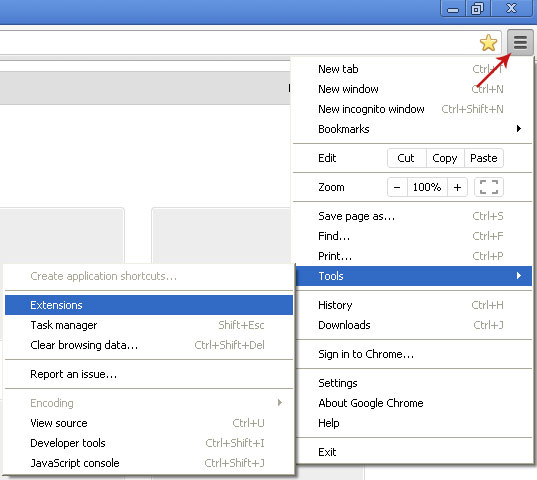
1. Click on Chrome menu button. Go to ToolsExtensions.


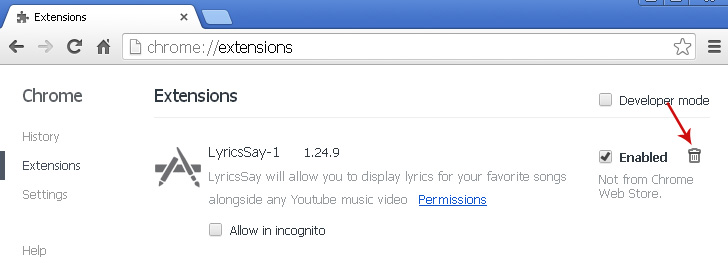
2. Click on the trashcan icon to remove LyricsSay, DownloadTerms, LyricXeeker, HD-Plus and other extensions that you do not recognize.


Remove "Ads by LyricsSay" on Mozilla Firefox:

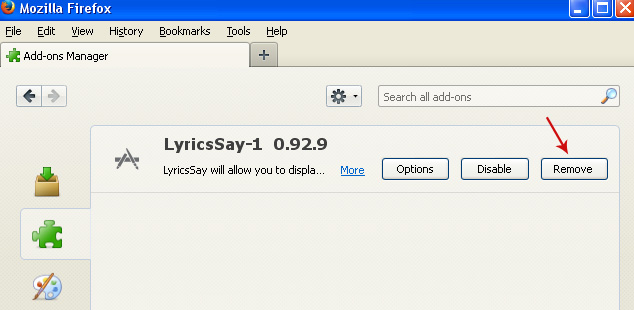
1. Open Mozilla Firefox. Go to ToolsAdd-ons.


2. Select Extensions. Click Remove button to remove LyricsSay, DownloadTerms, LyricXeeker, HD-Plus and other extensions that you do not recognize.


Remove "Ads by LyricsSay" on Internet Explorer:

1. Open Internet Explorer. Go to ToolsManage Add-ons. If you have the latest version, simply click on the Settings button.


2. Select Toolbars and Extensions. Click Remove/Disable button to remove the browser add-ons listed above.

Read More..

Remove PC Fix Speed and 24x7 Help Uninstall Guide

PC Fix Speed is a system optimizer, mainly Windows registry fixer/cleaner. The only reason Im writing about it is because I recently got lots of questions from my readers asking if PC Fix Speed is a virus or not? The short answer is: No. But is it truly legit and useful? Security experts and technology experts in general have differing opinions on the value of registry cleaners and system optimization applications. Honestly, Im not a fan of registry cleaners. The only one I use is CCleaner because its free and does the job pretty well. Of course, there are other great applications to choose from, for instance Registry Mechanic by PC Tools and PC TuneUp by AVG. Both are well known companies in computer and internet security market. I would call these white hats because they do not report false positives and normally give you fairly honest and technically correct scan results. There are, however, grey or blacks hats, just like rogue applications. Such registry cleaners basically claim that your computer could run a lot faster if you removed hundreds or sometimes even thousands of supposedly identified registry and system errors, unwanted files, etc. For the truth to be told, such applications display highly exaggerated scan results identifying insignificant problems or errors as quite important or even critical ones.


Its not very uncommon for Windows registry to pick up lots of unnecessary registry entries that are created when you install or remove software. They may indeed slow down your computer, this is way using a legit registry cleaner from time to time is obviously not a bad idea at all. In fact, I recommend you to use a registry cleaner every once in a while.

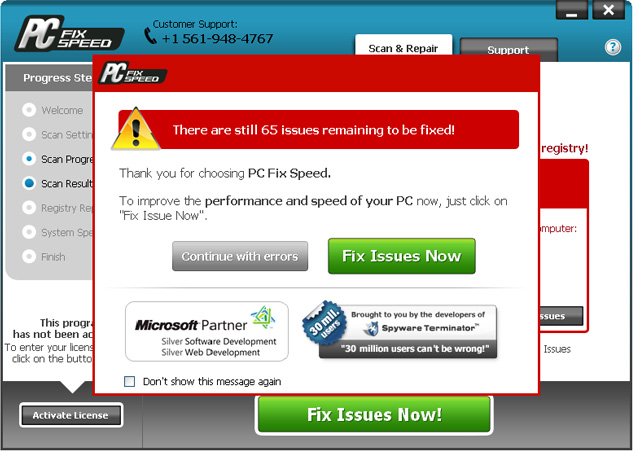
To see how PC Fix Speed actually works, I installed it on my test machine. A clean install of Windows XP, fully updated and without any noticeable errors. I ran a quick scan with this PC optimization software and after a few minutes I saw the results: 65 issues were found on my computer. Not bad, from what Ive read about this software on the internet I was expecting a lo more issues and errors. Since these were only minor issues I decided to continue with errors.

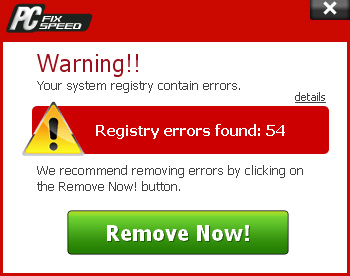
After a few minutes I got a pop-up notification claiming that PC Fix Speed has found 54 registry errors. Not sure what happened with 11 previously reported errors they just vanished. I guess thats a good thing :) Needles to say, such misunderstanding do not add value and trust for PC Fix Speed.


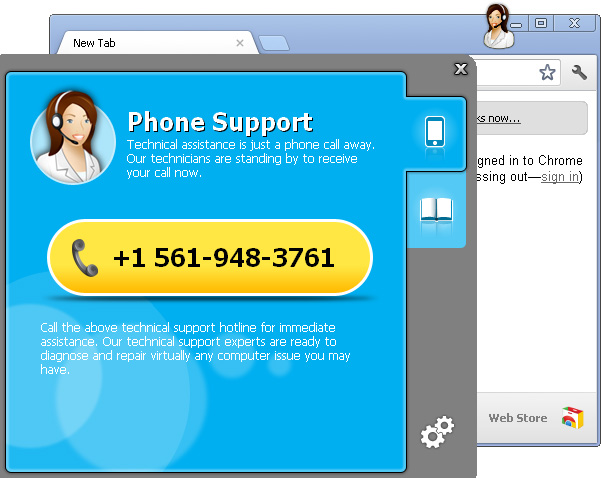
Oh and by the way, I forgot to mention that the registry cleaner came with this rather interesting application called 24x7 Help. Its icon (a woman with a headphone) appears at the top of any open window, for example Google Chrome:


Apparently, its some sort of tech support available by phone. Some people reported that the application says "Microsoft trained technicians are standing by ready to help you solve all your PC issues and more" which was quickly identified as a scam by Microsoft engineers. The current 24x7 Help application doesnt provide such information, so its remain unclear whether or not they are really Microsoft trained technicians. I have to admit its unusual and for me quite annoying. Besides, it suprising how such a small apps functionally rely on three actively running processes:
  • App24x7Help.exe
  • App24x7Hook.exe
  • App24x7Svc.exe
Clearly unnecessary stuff. Its up to you if you want to keep it or not. I would remove it.

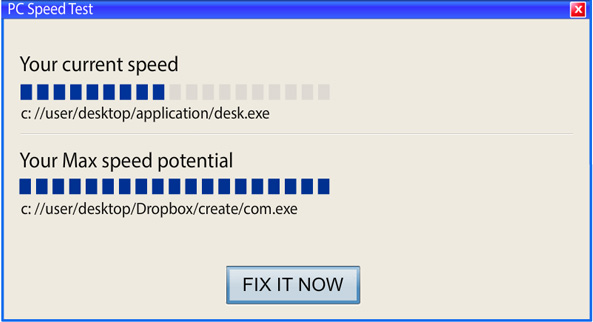
Last, but not least, both applications PC Fix Speed (virus) and 24x7 Help are promoted via freeware and kinda misleading ads. Probably this is the reason why some people say they didnt install neither of these intentionally or knowingly. Heres one of many ads that are used to promote this registry cleaner:


It pretends to scan my computer. This immediately reminded me all those fake online malware scanners used by scammers to promote rogue antivirus software. Finally, some people just couldnt remove this software from their computers. Maybe there were some technical problems or something, but they simply couldnt. So, to remove PC Fix Speed and 24x7 Help from your computer, please follow the removal instructions below.

Have you had experience with PC Fix Speed on your computer? Post your comments and questions below.

Written by Michael Kaur, http://deletemalware.blogspot.com


PC Fix Speed and 24x7 Help removal instructions:

1. First of all, download recommended anti-malware software and run a full system scan. It will detect and remove this infection from your computer. You may then follow the manual removal instructions below to remove the leftover traces of this browser hijacker. Hopefully you wont have to do that.


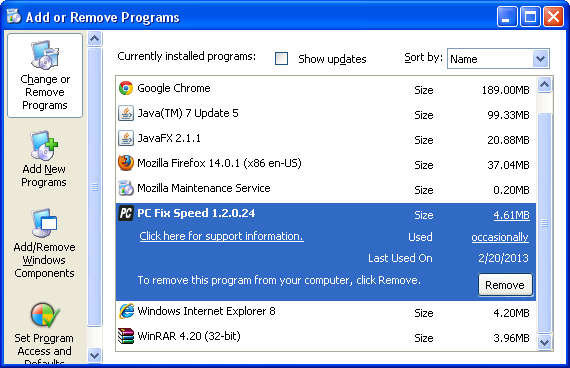
2. Remove PC Fix Speed and 24x7 Help from your computer using the Add/Remove Programs control panel (Windows XP) or Uninstall a program control panel (Windows 7 and Windows 8).

Go to the Start Menu. Select Control PanelAdd/Remove Programs.
If you are using Windows Vista or Windows 7, select Control PanelUninstall a Program.


If you are using Windows 8, simply drag your mouse pointer to the right edge of the screen, select Search from the list and search for "control panel".


Or you can right-click on a bottom left hot corner (formerly known as the Start button) and select Control panel from there.


3. When the Add/Remove Programs or the Uninstall a Program screen is displayed, scroll through the list of currently installed programs and remove PC Fix Speed (current version 1.2.0.24) and 24x7 Help.


Simply select each application and click Remove. If you are using Windows Vista, Windows 7 or Windows 8, click Uninstall up near the top of that window. When youre done, please close the Control Panel screen.

If you cant remove it through Control Panel, then you will have to remove both applications manually.

  • C:Program filesPC Fix Speed
  • C:Documents and SettingsAll UsersStart menuProgramsPC Fix Speed
  • C:Program files24x7Help

Read More..

Remove Eximioussearchsystem com Uninstall Guide

Eximioussearchsystem.com is a ZeroAccess/Sirefef rootkit-related browser hijacker that redirects selected search results from major search engines to other websites, usually various advertisements and sites of dubious content, that have nothing to do with your search inquiry. This rootkit blocks legitimate anti-malware software and may grow your Internet connection increasingly sluggish since the infection started. Re-installing web browser wont help as well as attempt to restore your computer to previous date when the system was not infected. This is a common enough problem, already well documented but even computer-savvy users can mess around with infected computer for a couple of hours ore even more. Eximioussearchsystem.com redirects due to the ZeroAccess are very annoying and frustrating, however, the rootkit itself is a lot bigger problem as it injects malicious code into system files in order to bypass firewalls and anti-virus products. You may not notice the rootkit right away but if you are reading this article then Im pretty sure youve noticed that while the redirect is loading it says Waiting for eximioussearchsystem.com at the bottom left corner of your computer screen.


The rootkit starts a process with a very unique name with the following structure: numbers:numbers.exe, for example 324252561:2342956285.exe. Just open up Task Manager and youll see it.


You cant end it. You cant delete the malicious file either. But if you think that theres no other option but to reformat my hard drive, than you are wrong, because Webroot and Kasperky both have free utilities designed to remove ZeroAccess/Sirefef rootkit from infected machines. So to remove this virus from your computer and to stop eximioussearchsystem.com redirects, please follow the removal instructions below. If you have any questions, please leave a comment below. Good luck and be safe online!


Eximioussearchsystem.com removal instructions:

1. First of all, download and run ZeroAccess/Sirefef/MAX++ removal tool. (works on 32-bit systems only!)

2. Then use TDSSKiller.

3. Finally, scan your computer with recommend anti-malware software to remove the leftovers of this virus from your computer.
NOTE: if you get the following Windows Security Alert, please click on Unblock button. This alert is caused by ZeroAccess rootkit.


Share this information with your friends:
Read More..

How to Remove Internet Security Essentials Uninstall Guide

Internet Security Essentials is a rogue antivirus program which acts like a real virus scanner, searching your computer for malicious software and viruses. After the fake scan, it claims to have detected Trojans, spyware, adware and other malware to make you think that your computer is infected. Then Internet Security Essentials prompts you to pay a small fee to remove the threats which do not even exist. Theres no trustworthy company behind it, so you shouldnt purchase it. Besides, it gives a false sense of security. Not to mention that it wont remove any infections from your computer. What is more, Internet Security Essentials is promoted through the use of fake online scanners, drive-by downloads and other malicious software. It is not a legal and truly legitimate anti-virus. If you somehow ended up with this rogue AV on your computer, please follow the steps in the removal guide below to remove Internet Security Essentials and any related malware for free.


Internet Security Essentials is a re-branded version of Smart Internet Protection 2011 rogueware. What does this rogue program actually do? It just copies several random files into the %UserProfile% directory and then "flags" those files as malware. Some of the files that can be listed as malicious software: PE.exe, DBOLE.exe, CLSV.tmp, kernel32.exe, std.dll, grid.sys. Furthermore, Internet Security Essentials changes your Windows settings to use a proxy server that will not allow you to browse any or certain web pages. It also modifies Windows Hosts files and may even block other programs on your computer. Last, but not least, Internet Security Essentials displays fake security warnings and notifications saying that your computer is infected with dangerous malware or under attack from a remote computer.
Attention! 20 infected files detected!
Trojan.BAT.AnitV.a
Packed.Win32.PolyCrypt
SpamTool.Win32.Delf.h
Trojan-PSW.Win32.Hooker
Warning! Identity theft attempt detected
Target: Microsoft Corporation keys
System alert
Internet Security Essentials has detected potentially harmful software in your system. It is strongly recommended that you register Internet Security Essentials to remove all found threats immediately.
As you can see, Internet Security Essentials is a scam. You should not purchase it, and if you have, please contact your credit card company and dispute the charges. To remove Internet Security Essentials and any related malware, please follow the removal instructions below. Let me know if you have any questions, comments, or suggestions. You can leave a message using the contact form below. Good luck and be safe online!


Internet Security Essentials removal instructions:

1. Reboot your computer is "Safe Mode with Networking". As the computer is booting tap the "F8 key" continuously which should bring up the "Windows Advanced Options Menu" as shown below. Use your arrow keys to move to "Safe Mode with Networking" and press Enter key. Read more detailed instructions here: http://www.computerhope.com/issues/chsafe.htm


NOTE: Login as the same user you were previously logged in with in the normal Windows mode.

2. Launch Internet Explorer. In Internet Explorer go to: Tools->Internet Options->Connections tab. Click Lan Settings button and uncheck the checkbox labeled Use a proxy server for your LAN. Click OK. You may have to repeat steps 1-2 if you will have problems downloading malware removal programs.


3. Download free anti-malware software from the list below and run a full system scan.
NOTE: in some cases the rogue program may block anti-malware software. Before saving the selected program onto your computer, you may have to rename the installer to iexplore.exe or winlogon.exe With all of these tools, if running Windows 7 or Vista they MUST be run as administrator. Launch the program and follow the prompts. Dont forget to update the installed program before scanning.

4. New threats appear every day. In order to protect your PC from such (new) infections we strongly recommend you to use ESET Smart Security.


Alternate Internet Security Essentials removal instructions using HijackThis or Process Explorer (in Normal mode):

1. Launch Internet Explorer. In Internet Explorer go to: Tools->Internet Options->Connections tab. Click Lan Settings button and uncheck the checkbox labeled Use a proxy server for your LAN. Click OK.


2. Download Process Explorer.
3. Rename procexp.exe to iexplore.exe and run it. Look for similar process in the list and end it:
  • FN43g_392.exe
OR download iexplore.exe (NOTE: iexplore.exe file is renamed HijackThis tool from TrendMicro).
Launch the iexplore.exe and click "Do a system scan only" button.
If you cant open iexplore.exe file then download explorer.scr and run it. Search for similar entries in the scan results:

R1 - HKCUSoftwareMicrosoftWindowsCurrentVersionInternet Settings,ProxyServer = http=127.0.0.1:18392
O4 - HKCU..Run: [Internet Security Essentials] "C:Documents and SettingsAll UsersApplication Data38gdr2FN43g_392.exe" /s /d
Select all similar entries and click once on the "Fix checked" button. Close HijackThis tool.

4. Download free anti-malware software from the list below and run a full system scan.
NOTE: in some cases the rogue program may block anti-malware software. Before saving the selected program onto your computer, you may have to rename the installer to iexplore.exe or winlogon.exe With all of these tools, if running Windows 7 or Vista they MUST be run as administrator. Launch the program and follow the prompts. Dont forget to update the installed program before scanning.

5. New threats appear every day. In order to protect your PC from such (new) infections we strongly recommend you to use ESET Smart Security.


Internet Security Essentials associated files and registry values:

Files:
  • C:Documents and SettingsAll UsersApplication Data38gdr2
  • C:Documents and SettingsAll UsersApplication Data38gdr2FN43g_392.exe
  • C:Documents and SettingsAll UsersApplication Data38gdr2[SET OF RANDOM CHARACTERS].dll
  • C:Documents and SettingsAll UsersApplication Data38gdr2[SET OF RANDOM CHARACTERS].ocx
  • C:Documents and SettingsAll UsersApplication DataSMEYFE
  • %UserProfile%Application DataInternet Security Essentials
%UserProfile% refers to:
C:Documents and Settings[UserName] (for Windows 2000/XP)
C:Users[UserName] (for Windows Vista & Windows 7)

Registry values:
  • HKEY_CURRENT_USERSoftwareMicrosoftInternet ExplorerDownload "RunInvalidSignatures" = 1
  • HKEY_CURRENT_USERSoftwareMicrosoftWindowsCurrentVersionInternet Settings "ProxyServer" = "http=127.0.0.1:18392"
  • HKEY_CURRENT_USERSoftwareMicrosoftWindowsCurrentVersionRun "Internet Security Essentials"
  • HKEY_LOCAL_MACHINESOFTWAREMicrosoftWindows NTCurrentVersionImage File Execution Options "Debugger" = "svchost.exe"
Share this information with other people:
Read More..

Remove Recommended for You Pop ups and Malware Uninstall Guide

Over the last few weeks, some of our readers have alerted us to the fact that they got some kind of malicious software that redirected web browsers to different 3rd party websites and displayed intrusive advertisements in the lower right hand corner of their computer screens. No joke. However, its a very common issue and sometimes its rather difficult to tell whether its caused by malware, browser helper object or just a useless web browser extension. Usually, web browser redirects are indeed caused by malware, mostly rootkits and Trojan horses, but thats not always the case. So, we decided to dig into the issue and trace the root of the problem.

Shortly after we ran a certain set of Trojans on our test machine, we found a sample (Trojan.Small.dac or Troj/RuinDl-Gen) that was responsible for the combination of the Recommended for You pop-ups and web browser redirects. The web browser redirects seem to happen at random or at least they didnt happen all the time. The Trojan horse displayed two different pop-up windows: an iPhone looking box with various advertisements and a smaller one with just random ads. It happened in Internet Explorer, Mozilla Firefox and Google Chrome. Cant blame the browser this time. Its probably a cross platform malware too. Besides, it happened on both 32-bit and 64-bit systems. Ads were not very intrusive, they didnt show up like every two or five minutes. Once you minimize the ad box, it doesnt appear until you restart your computer. Thats right, you cant close the ad box, when you click the "X" it just minimizes into a smaller box that says "Recommended for You".

An-iPhone looking ad box:


A smaller one, but still very annoying:


Recommended for You box:


Now, that we know the root of this problem (malware) we can take the appropriate actions. Running a full virus scan with anti-malware software is essential step towards solving the Recommended for You malware problem. Once the Trojan horse is gone, you need to replace Windows Host file since its partly responsible for web browser redirects and annoying pop-ups as well. Yes, the Trojan modifies Windows Hosts file making web browser inquiries a subject to redirect. To remove this malware from your computer, please follow the steps in the removal guide below. Should you need any further assistance, dont hesitate to contact us or just leave a comment below. Good luck and be safe online!

http://deletemalware.blogspot.com


Recommended for You malware removal instructions:

1. Download recommended anti-malware software (direct download) and run a full system scan to remove this malware from your computer.

3. To reset the Hosts file back to the default automatically, download and run Fix it and follow the steps in the Fix it wizard.

4. Remove files from Windows %Temp% folder.

Tell your friends:
Read More..

Remove File Recovery Malware Uninstall Guide

File Recovery is a rogue PC repair and optimization product, misleading at best and fraudulent at worst, that carries a dangerous payload. This fake system repair application pretends to scan a computer for stuff like invalid Windows registry keys, hard drive reading errors, junk files, critical system errors, RAM failures, and much more. Since it doesn’t actually scan a computer for any of these issues it’s not surprising at all that File Recovery scareware reports a bunch of non-existing system errors and threats on a targeted machine.

The worst part is that it hijacks a compromised computer, intentionally misrepresents the system status and asks user to pay for bogus PC repair software activation to remove non-existing hard drive errors and other risks from the computer. Unlike ransomware, it doesn’t freeze your computer screen (thanks for that). But it does perform actions that prevent user from accessing certain applications and Windows features. In rare cases, it can make computer unstable forcing unexpected reboots and blue screens of death.


If you pay for this rogue application you will lose your money and probably without a chance to get them back. But you can still contact your credit card company and dispute the charges. Who knows it might just work. After all, you don’t have anything to lose. At least you know it’s a scam. Besides, more than 4% of PC users that got infected with scareware think that File Recovery and similar applications are genuine Windows products designed to enhance system protection against viruses and system failures. Bit shocking isnt it.

Scareware infection symptoms are almost identical – fake scanners and misleading security alerts popping up at random intervals. Also, File Recovery is a very generic name and very competitive keyword at the same time. The last one was called Data Recovery. Cyber crooks choose very competitive keywords as their bogus software names making it hard to rank well in search results. It’s a wise move but users will probably search for File Recovery virus or malware or anything like that and we are pretty sure that Google will handle everything just fine.

Cyber crooks use various techniques like spam; drive-by downloads, and fake virus scanners to distribute rogue security applications. Even thought, most of the reports show that Fake AV applications seem to be on decline, they are still a significant threat. There are still many active scareware distribution channels and affiliate networks called ‘partnerka.’ The rules are different now. Two or more years ago, cyber crooks that were promoting scareware earned ~$25 per sale or sometimes even more. Now, they can earn $50 and more. 10k infected machines per day adds additional 10% revenue share. But yeah, in the last few months, there hasnt been much to talk about.

This rogue HDD repair program hides certain files, usually shortcuts and Desktop icons, and moves other files to Windows %Temp%smtmp folder.


Do not delete any files from your Temp folder. We will show you how to restore hidden files in the removal guide below.

Certain fake security applications as well as fake PC repair utilities use very aggressive methods to scare users into believing that their computer are badly infected or damaged while others show up every ten minutes or so and remind you about security issues that need your attention. Recent scareware variants had working uninstallers, so levels of aggressive behavior are clearly different. Unfortunately, File Recovery malware uninstall doesnt work. You can find the uninstaller in your "All Programs" list. Clicking uninstall button calls a fake system error (see the image below). The rogue application claims that you cannot uninstall it because your local disk is not accessible. The funny thing is, you can uninstall whatever program you want but not this one. Coincidence? :) Of course not.


File Recovery removal is relatively easy unless it comes bundled with sophisticated malicious software, very often the ZeroAccess rootkit. When running, the rogue application blocks access to Web pages by showing a warning message in the browser and shuts download running antivirus software. But don’t worry there’s definitely a way to remove File Recovery virus. Scroll down a bit for step-by-step removal instructions. If you need help removing this malware from your PC, please let me know (leave a comment below). Good luck!

Source: http://deletemalware.blogspot.com


Quick File Recovery malware removal:

1. Use the activation key given below to register your copy of File Recovery malware. This will allow you to download and run recommended malware removal software and automatically restore hidden files and shortcuts. Dont worry, youre not doing anything illegal. Select "Trial version. Click to activate" (at the bottom of the fake scanner screen). Use fake email and the following activation key:

fake@mail.com
56723489134092874867245789235982


2. Download TDSSKiller and run a system scan. Remove found rootkits (if any). Reboot your computer if required.

3. Download recommended anti-malware software (direct download) and run a full system scan to remove this virus from your computer.


Alternate "File Recovery" removal instructions:

1. First of all, you need to unhide the files and folders. Select Run... from the Start Menu or just hit the key combination CTRL+R on your keyboard. In the Open: field, enter cmd and hit Enter or click OK.


At the command prompt, enter attrib -h /s /d and hit Enter. Now, you should see all your files and folders. NOTE: you may have to repeat this step because the malware may hide your files again.


If you still cant see any of your files, Select Run... from the Start Menu or just hit the key combination CTRL+R on your keyboard. In the Open: field, enter explorer and hit Enter or click OK.


2. Open Internet Explorer. Select Run... from the Start Menu or just hit the key combination CTRL+R on your keyboard. In the Open: field, enter iexplore.exe and hit Enter or click OK.

Open Internet Explorer and download TDSSKiller. This malware usually (but not always) comes bundled with TDSS rootkit. Removing this rootkit from your computer is very important (if exists). Run TDSSKiller to remove the rootkit.


3. Finally, download recommended anti-malware software (direct download) to remove this virus from your computer.

NOTE: in some cases the rogue program may block anti-malware software. Before saving the selected program onto your computer, you may have to rename the installer to iexplore.exe or winlogon.exe With all of these tools, if running Windows 7 or Vista they MUST be run as administrator. Launch the program and follow the prompts. Dont forget to update the installed program before scanning.


Manual File Recovery removal instructions:

1. First of all, you need to unhide the files and folders. Select Run... from the Start Menu or just hit the key combination CTRL+R on your keyboard. In the Open: field, enter cmd and hit Enter or click OK.


At the command prompt, enter attrib -h /s /d and hit Enter. Now, you should see all your files and folders. NOTE: you may have to repeat this step because the malware may hide your files again.


2. The rogue application will place an icon or your desktop. Right click on the icon, click Properties in the drop-down menu.


Then click the Shortcut tab.

The location of the malware is in the Target box.


On computers running Windows XP, malware hides in:
C:Documents and SettingsAll UsersApplication Data


On computers running Windows Vista/7, malware hides in:
C:ProgramData


NOTE: by default, Application Data folder is hidden. Malware files are hidden as well. To see hidden files and folders, please read Show Hidden Files and Folders in Windows.

3. Click "Find Target..." button, it will take you to the folder where the malicious files are located. Or you can simply browse to those files manually.

Example Windows XP:
C:Documents and SettingsAll UsersApplication Data2yZ~pcB_RY.exe

Example Windows Vista/7:
C:ProgramData2yZ~pcB_RY.exe

Basically, there will be a couple of  files named with a series of numbers or letters.


For example, rename 2yZ~pcB_RY.exe to virus.vir and click Yes to change it. Please note, your file name will probably be different. 


It should be: C:Documents and SettingsAll UsersApplication Datavirus.vir

Instead of: C:Documents and SettingsAll UsersApplication Data2yZ~pcB_RY.exe

4. Restart your computer. The malware should be inactive after the restart.

5. Open Internet Explorer and download TDSSKiller.This malware usually (but not always) comes bundled with TDSS rootkit. Removing this rootkit from your computer is very important (if exists). Run TDSSKiller and remove the rootkit.


6. Download recommended anti-malware software (direct download) to remove this virus from your computer

NOTE: in some cases the rogue program may block anti-malware software. Before saving the selected program onto your computer, you may have to rename the installer to iexplore.exe or winlogon.exe With all of these tools, if running Windows 7 or Vista they MUST be run as administrator. Launch the program and follow the prompts. Dont forget to update the installed program before scanning.


Associated File Recovery files and registry values:

Files:

Windows XP:
  • %AllUsersProfile%Application Data[SET OF RANDOM CHARACTERS]
  • %AllUsersProfile%Application Data[SET OF RANDOM CHARACTERS].exe
  • %UsersProfile%DesktopFile Recovery.lnk
  • %UsersProfile%Start MenuProgramsFile Recovery
  • %UsersProfile%Start MenuProgramsFile RecoveryFile Recovery.lnk
  • %UsersProfile%Start MenuProgramsFile RecoveryUninstall File Recovery.lnk
%AllUsersProfile% refers to: C:Documents and SettingsAll Users
%UserProfile% refers to: C:Documents and Settings[User Name]

Windows Vista/7:
  • %AllUsersProfile%[SET OF RANDOM CHARACTERS]
  • %AllUsersProfile%[SET OF RANDOM CHARACTERS].exe
  • %UsersProfile%DesktopFile Recovery.lnk
  • %UsersProfile%Start MenuProgramsFile Recovery
  • %UsersProfile%Start MenuProgramsFile RecoveryFile Recovery.lnk
  • %UsersProfile%Start MenuProgramsFile RecoveryUninstall File Recovery.lnk
%AllUsersProfile% refers to: C:ProgramData
%UserProfile% refers to: C:Users[User Name]

Registry values:
  • HKEY_CURRENT_USERSoftwareMicrosoftWindowsCurrentVersionRun "[SET OF RANDOM CHARACTERS].exe"
  • HKEY_CURRENT_USERSoftwareMicrosoftWindowsCurrentVersionRun "[SET OF RANDOM CHARACTERS]"
  • HKEY_CURRENT_USERSoftwareMicrosoftWindowsCurrentVersionPoliciesAssociations "LowRiskFileTypes" = /{hq:/s`s:/ogn:/uyu:/dyd:/c`u:/bnl:/ble:/sdf:/lrh:/iul:/iulm:/fhg:/clq:/kqf:/`wh:/lqf:/lqdf:/lnw:/lq2:/l2t:/v`w:/rbs:
  • HKEY_CURRENT_USERSoftwareMicrosoftWindowsCurrentVersionPoliciesAttachments "SaveZoneInformation" = 1
  • HKEY_CURRENT_USERSoftwareMicrosoftInternet ExplorerDownload "CheckExeSignatures" = no
  • HKEY_CURRENT_USERSoftwareMicrosoftInternet ExplorerMain "Use FormSuggest" = yes
Tell your friends:
Read More..