PC Fix Speed is a system optimizer, mainly Windows registry fixer/cleaner. The only reason Im writing about it is because I recently got lots of questions from my readers asking if PC Fix Speed is a virus or not? The short answer is: No. But is it truly legit and useful? Security experts and technology experts in general have differing opinions on the value of registry cleaners and system optimization applications. Honestly, Im not a fan of registry cleaners. The only one I use is CCleaner because its free and does the job pretty well. Of course, there are other great applications to choose from, for instance Registry Mechanic by PC Tools and PC TuneUp by AVG. Both are well known companies in computer and internet security market. I would call these white hats because they do not report false positives and normally give you fairly honest and technically correct scan results. There are, however, grey or blacks hats, just like
rogue applications. Such registry cleaners basically claim that your computer could run a lot faster if you removed hundreds or sometimes even thousands of supposedly identified registry and system errors, unwanted files, etc. For the truth to be told, such applications display highly exaggerated scan results identifying insignificant problems or errors as quite important or even critical ones.
Its not very uncommon for Windows registry to pick up lots of unnecessary registry entries that are created when you install or remove software. They may indeed slow down your computer, this is way using a legit registry cleaner from time to time is obviously not a bad idea at all. In fact, I recommend you to use a registry cleaner every once in a while.
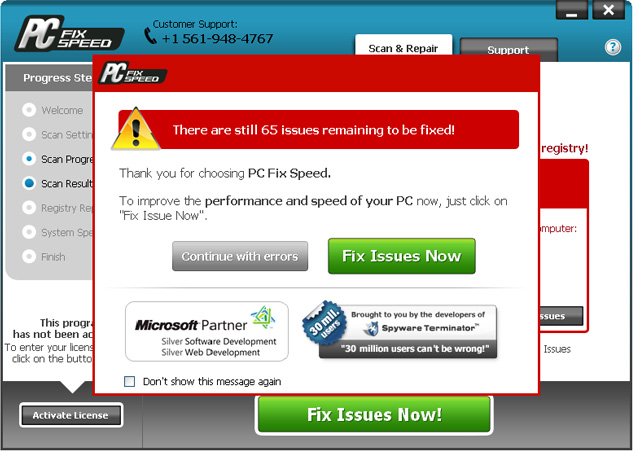
To see how PC Fix Speed actually works, I installed it on my test machine. A clean install of Windows XP, fully updated and without any noticeable errors. I ran a quick scan with this PC optimization software and after a few minutes I saw the results: 65 issues were found on my computer. Not bad, from what Ive read about this software on the internet I was expecting a lo more issues and errors. Since these were only minor issues I decided to continue with errors.
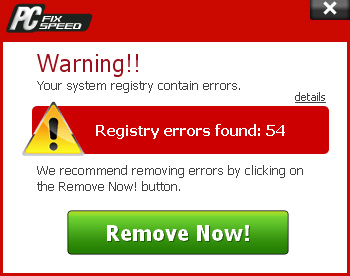
After a few minutes I got a pop-up notification claiming that PC Fix Speed has found 54 registry errors. Not sure what happened with 11 previously reported errors they just vanished. I guess thats a good thing :) Needles to say, such misunderstanding do not add value and trust for PC Fix Speed.
Oh and by the way, I forgot to mention that the registry cleaner came with this rather interesting application called 24x7 Help. Its icon (a woman with a headphone) appears at the top of any open window, for example Google Chrome:
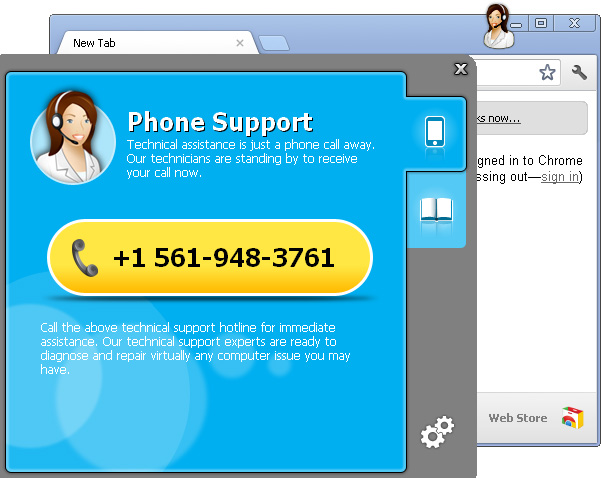
Apparently, its some sort of tech support available by phone. Some people reported that the application says "Microsoft trained technicians are standing by ready to help you solve all your PC issues and more" which was quickly identified as a scam by Microsoft engineers. The current 24x7 Help application doesnt provide such information, so its remain unclear whether or not they are really Microsoft trained technicians. I have to admit its unusual and for me quite annoying. Besides, it suprising how such a small apps functionally rely on three actively running processes:
- App24x7Help.exe
- App24x7Hook.exe
- App24x7Svc.exe
Clearly unnecessary stuff. Its up to you if you want to keep it or not. I would remove it.
Last, but not least, both applications PC Fix Speed (virus) and 24x7 Help are promoted via freeware and kinda misleading ads. Probably this is the reason why some people say they didnt install neither of these intentionally or knowingly. Heres one of many ads that are used to promote this registry cleaner:
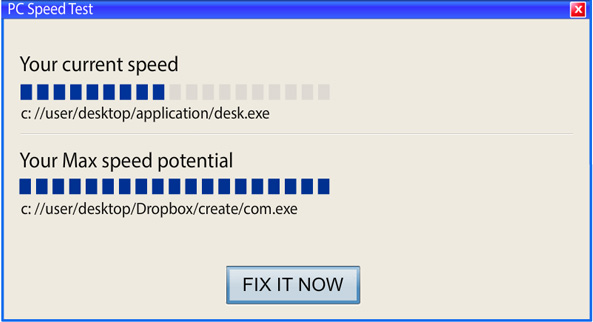
It pretends to scan my computer. This immediately reminded me all those fake online malware scanners used by scammers to promote rogue antivirus software. Finally, some people just couldnt remove this software from their computers. Maybe there were some technical problems or something, but they simply couldnt. So, to remove PC Fix Speed and 24x7 Help from your computer, please follow the removal instructions below.
Have you had experience with PC Fix Speed on your computer? Post your comments and questions below.
Written by
Michael Kaur, http://deletemalware.blogspot.com
PC Fix Speed and 24x7 Help removal instructions:1. First of all, download recommended anti-malware software and run a full system scan. It will detect and remove this infection from your computer. You may then follow the manual removal instructions below to remove the leftover traces of this browser hijacker. Hopefully you wont have to do that.
2. Remove PC Fix Speed and 24x7 Help from your computer using the
Add/Remove Programs control panel (Windows XP) or
Uninstall a program control panel (Windows 7 and Windows 8).
Go to the
Start Menu. Select
Control Panel →
Add/Remove Programs.
If you are using Windows Vista or Windows 7, select
Control Panel →
Uninstall a Program.

If you are using Windows 8, simply drag your mouse pointer to the right edge of the screen, select
Search from the list and search for "control panel".

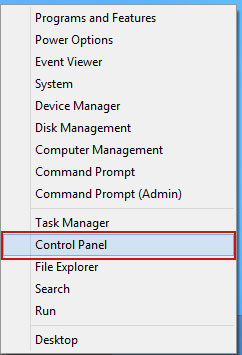
Or you can right-click on a bottom left hot corner (formerly known as the Start button) and select
Control panel from there.
3. When the
Add/Remove Programs or the
Uninstall a Program screen is displayed, scroll through the list of currently installed programs and remove
PC Fix Speed (current version 1.2.0.24) and
24x7 Help.
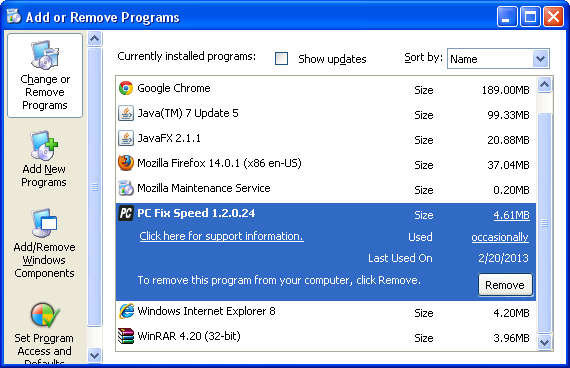
Simply select each application and click
Remove. If you are using Windows Vista, Windows 7 or Windows 8, click
Uninstall up near the top of that window. When youre done, please close the Control Panel screen.
If you cant remove it through Control Panel, then you will have to remove both applications manually.
- C:Program filesPC Fix Speed
- C:Documents and SettingsAll UsersStart menuProgramsPC Fix Speed
- C:Program files24x7Help


