Tampilkan postingan dengan label virus. Tampilkan semua postingan

Oficina Virtual de Denuncias virus removal

Oficina Virtual de Denuncias virus is a Spanish variant of a ransomware infection that masquerades as local law enforcement agency and tells you that youve been caught accessing illicit material online. Its a clever decision that already works perfectly fine in most English speaking countries, so obviously it should work just fine in other countries as well. In such way the ransom becomes a fine. Infected computer becomes unusable until you pay the ransom, and we’re speaking about 100 euros or even more. It depends, but usually scammers ask to pay either 100 euros in Europe and 100 dollars in the United States and also Canada.


Oficina Virtual de Denuncias virus is distributed in various ways. Recently, weve got numerous PCs infected with the TrojanDownloader:Win32/Dofoil.R malware. Its a Trojan horse that silently downloads malicious applications without consent. This could include the installation of additional malware components to an affected computer according to Microsoft. This could be anything, ransomware, spyware or even rootkits. This Trojan horse was first detected this year, back in June or July if Im not mistaken. I couldnt say it was used to distributed ransomware until recent months. Now, cyber criminals use this Trojan horse to distribute Oficina Virtual de Denuncias virus and similar ransomware as well.

Once this Trojan horse executes additional Spanish ransom ware components, affected users computers become unusable. The ransomware component displays completely false notification about illicit material found on your computer. It uses Spanish police logo as a part of the scam to add more trustworthiness. Cyber crooks have also implemented a flash component that can access your web camera, if you have one of course, and display either your face or part of your room. Im sure that this web cam component rarely works but when it does it can scare the living hell out of someone. The fake Oficina Virtual de Denuncias message says:
El ordenador suyo está bloqueado por el sistema d control informativo automatizado q está relacionado con la policía.
The ransom can be paid using either Pay Safe Card or Ukash. El ordenador suyo está bloqueado ukash is usually what users of an infected computers search for when trying to remove this virus. Both Ukash and Pay Safe Card vouchers are available to buy on various stores around the country. Nevertheless, DO NOT pay the ransom. The fake notification has nothing to do with the local authorities and besides, youve probably didnt do anything wrong whatsoever. What is more, Ukash and Pay Safe Card cannot dispute the charges. This is one of the reasons why scammers are using these services instead of Master Card and Visa payments processors.

Some variants of Oficina Virtual de Denuncias virus work in Safe Mode with Networking while others dont. First, reboot your computer in Safe Mode with Networking or Comman Prompt and try to restore your computer to an earlier date when the system was clean. If you cant do this or the virus blocks any attempts to remove it, use Kaspersky Rescue Disk or similar software if you like. Please follow detailed Oficina Virtual de Denuncias virus removal instructions below.


Oficina Virtual de Denuncias virus removal instructions (System Restore, may not work for all users):

1. Unplug your network cable and manually turn your computer off. Reboot your computer is Safe Mode with Command Prompt. As the computer is booting tap the F8 key continuously which should bring up the Windows Advanced Options Menu as shown below. Use your arrow keys to move to Safe Mode with Command Prompt and press Enter key.


2. Make sure you log in to an account with administrative privileges (login as admin).

3. Once the Command Prompt appears you have few seconds to type in explorer and hit Enter. If you fail to do it within 2-3 seconds, the Oficina Virtual de Denuncias virus will take over and will not let you type anymore.

4. If you managed to bring up Windows Explorer you can now browse into:
  • Win XP: C:windowssystem32 estore strui.exe and press Enter
  • Win Vista/Seven: C:windowssystem32 strui.exe and press Enter
5. Follow the steps to restore your computer into an earlier day.

6. Download recommended anti-malware software (Spyware Doctor) and run a full system scan to remove Oficina Virtual de Denuncias virus and associated malware.


Oficina Virtual de Denuncias virus removal using Kaspersky Rescue Disk:

1. Download the Kaspersky Rescue Disk iso image from the Kaspersky Lab server. (Direct download link)
Please note that this is a large downloaded, so please be patient while it downloads.

2. Record the Kaspersky Rescue Disk iso image to a CD/DVD. You can use any CD/DVD record software you like. If you dont have any, please download and install ImgBurn. Small download, great software. You wont regret it, we promise.

For demonstration purposes we will use ImgBurn.

So, open up ImgBurn and choose Write image file to disc.


Click on the small Browse for file icon as show in the image. Browse into your download folder and select kav_rescue_10.iso as your source file.


OK, so know we are ready to burn the .iso file. Simply click the Write image file to disc button below and after a few minutes you will have a bootable Kaspersky Rescue Disk 10.


3. Configure your computer to boot from CD/DVD. Use the Delete or F2, F11 keys, to load the BIOS menu. Normally, the information how to enter the BIOS menu is displayed on the screen at the start of the OS boot.


The keys F1, F8, F10, F12 might be used for some motherboards, as well as the following key combinations:
  • Ctrl+Esc
  • Ctrl+Ins
  • Ctrl+Alt
  • Ctrl+Alt+Esc
  • Ctrl+Alt+Enter
  • Ctrl+Alt+Del
  • Ctrl+Alt+Ins
  • Ctrl+Alt+S
If you can enter Boot Menu directly then simply select your CD/DVD-ROM as your 1st boot device.

If you cant enter Boot Menu directly then simply use Delete key to enter BIOS menu. Select Boot from the main BIOS menu and then select Boot Device Priority.


Set CD/DVD-ROM as your 1st Boot Device. Save changes and exist BIOS menu.


4. Lets boot your computer from Kaspersky Rescue Disk.

Restart your computer. After restart, a message will appear on the screen: Press any key to enter the menu. So, press Enter or any other key to load the Kaspersky Rescue Disk.


5. Select your language and press Enter to continue.


6. Press 1 to accept the End User License Agreement.


7. Select Kaspersky Rescue Disk. Graphic Mode as your startup method. Press Enter. Once the actions described above have been performed, the operating system starts.


8. Click on the Start button located in the left bottom corner of the screen. Run Kaspersky WindowsUnlocker to remove Windows system and registry changes made by Oficina Virtual de Denuncias virus. It wont take very long.


9. Click on the Start button once again and fire up the Kaspersky Rescue Disk utility. First, select My Update Center tab and press Start update to get the latest malware definitions. Dont worry if you cant download the updates. Just proceed to the next step.


10. Select Object Scan tab. Place a check mark next to your local drive C:. If you have two or more local drives make sure to check those as well. Then click Start Objects Scan to scan your computer for malicious software.


11. Quarantine (recommended) or delete every piece of malicious code detected during the system scan.


12. You can now close the Kaspersky Rescue Disk utility. Click on the Start button and select Restart computer.


13. Please restart your computer into the normal Windows mode. Download recommended anti-malware software (Spyware Doctor) and run a full system scan to remove Oficina Virtual de Denuncias virus and associated malware.


Associated Oficina Virtual de Denuncias virus files and registry values:

Files:
  • [SET OF RANDOM CHARACTERS].exe
Registry values:
  • HKEY_LOCAL_MACHINESOFTWAREMicrosoftWindows NTCurrentVersionWinlogon"Shell" = "[SET OF RANDOM CHARACTERS].exe"
Tell your friends:
Read More..

Remove Ads by LyricsSay Virus Removal Guide

"Ads by LyricsSay" is a new bit of adware for Windows but it may work just fine on Mac too. This adware install a web browser extension (add-on) and begins to display ads on web sites that normally do not contain those ads, including popular sites like Youtube, Facebook or Ebay. The same malicious extension may display inline advertisements, you know when words get underlined and hovering over them shows popup ads, for example Monstermarketplace. Its difficult to say whether it is legit or not but unfortunately its not detected by many anti-virus programs. However, it think it should be. No one likes adware, especially when annoying ads are injected without your knowledge or agreement. The LyricsSay extension for instance which is used to load those ads is useless. Even though, it claims to display lyrics for pretty much every song on Youtube the only thing Ive seen so far is a bunch of ads. This particual adware that displays "Ads by LyricsSay" ads is closely related to dfs.pathdone.net browser hijacker. It may pop up whenever you open a new tab or click on a link. Each ad displayed by LyricsSay adware can be disabled by visiting pathdone.net, at least this is what adware creators say. However, I dont think you should simply disable adware and think that your computer is perfectly fine now. It would be a lot better if you uninstalled it and ran a full malware scan. As you may already know, such applications are very often bundled with toolbars, browser hijackers and even spyware. If you find yourself infected with "Ads by LyricsSay" virus, please follow the removal instructions below.


At one time or another weve all been targeted by these nuisances but the fifty million dollar question is, how do they get on to our computers in the first place - and how can we stop them? "Ads by LyricsSay" has a number of unwelcome traits. One being that it will normally download additional adware onto your computer and as most of us know, it can be intensely annoying thanks to its pop up advertising windows. If youve been infected you may well be wondering how the LyricsSay wormed its way onto your PC or laptop in the first place. Well I hate to break it to you but you might actually have installed it yourself. Ads by LyricsSay is usually bundled with freeware which means that anything you download without paying for can put you at risk. The big question is, how do you avoid doing this and how can you ensure youre not inadvertently exposing yourself to adware or something that can cause even more harm?

Anti-malware, anti-malware, anti-malware! We cant say it enough - using your PC without having anti-malware software installed is like playing Russian roulette! But that aside, you can also help yourself by being a little more wary about what you install on your computer. If youre thinking of downloading something from a website that is covered in spammy looking adverts and dodgy links then stop and ask yourself whether you could be downloading the software from somewhere more reputable. Also check the end user license agreement when you download something as PUPs come packaged with other programs. Most agreements make reference to ‘other applications’ so don’t just click ‘OK’ or ‘Continue’ but read the agreement and uncheck any boxes that were already opting you in for an (unwanted) added extra. Good luck and be safe online!

Written by Michael Kaur, http://deletemalware.blogspot.com


"Ads by LyricsSay" removal instructions:

1. First of all, download recommended anti-malware software and run a full system scan. It will detect and remove this infection from your computer. You may then follow the manual removal instructions below to remove the leftover traces of this malware. Hopefully you wont have to do that.


2. Remove LyricsSay and related programs from your computer using the Add/Remove Programs control panel (Windows XP) or Uninstall a program control panel (Windows 7 and Windows 8).

Go to the Start Menu. Select Control PanelAdd/Remove Programs.
If you are using Windows Vista or Windows 7, select Control PanelUninstall a Program.


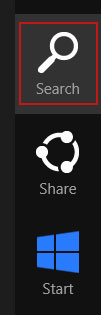
If you are using Windows 8, simply drag your mouse pointer to the right edge of the screen, select Search from the list and search for "control panel".


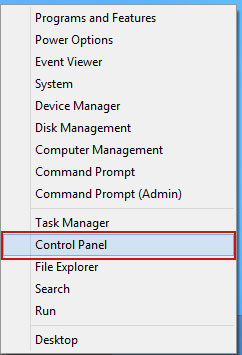
Or you can right-click on a bottom left hot corner (formerly known as the Start button) and select Control panel from there.


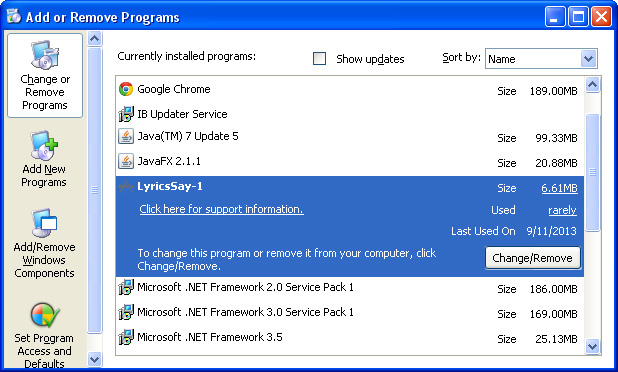
3. When the Add/Remove Programs or the Uninstall a Program screen is displayed, scroll through the list of currently installed programs and remove the following:
  • LyricsSay
  • LyricXeeker
  • DownloadTerms
  • HD-Plus
  • and any other recently installed application


Simply select each application and click Remove. If you are using Windows Vista, Windows 7 or Windows 8, click Uninstall up near the top of that window. When youre done, please close the Control Panel screen.


Remove "Ads by LyricsSay" on Google Chrome:

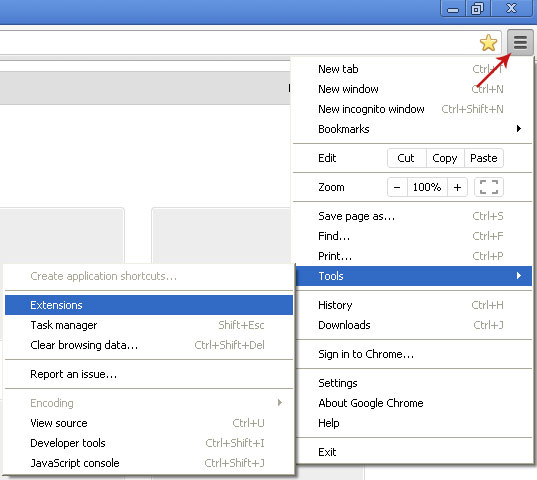
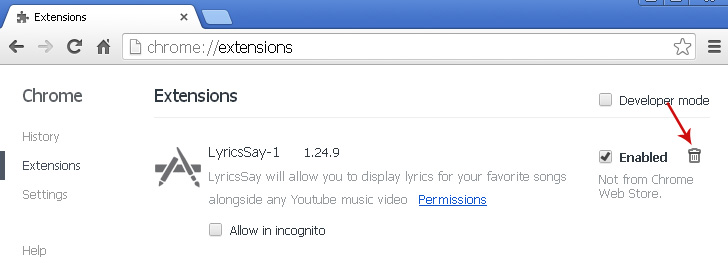
1. Click on Chrome menu button. Go to ToolsExtensions.


2. Click on the trashcan icon to remove LyricsSay, DownloadTerms, LyricXeeker, HD-Plus and other extensions that you do not recognize.


Remove "Ads by LyricsSay" on Mozilla Firefox:

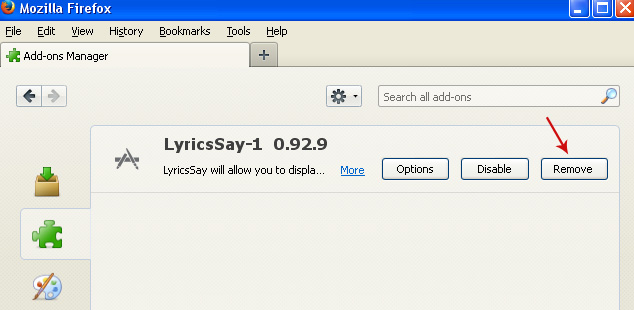
1. Open Mozilla Firefox. Go to ToolsAdd-ons.


2. Select Extensions. Click Remove button to remove LyricsSay, DownloadTerms, LyricXeeker, HD-Plus and other extensions that you do not recognize.


Remove "Ads by LyricsSay" on Internet Explorer:

1. Open Internet Explorer. Go to ToolsManage Add-ons. If you have the latest version, simply click on the Settings button.


2. Select Toolbars and Extensions. Click Remove/Disable button to remove the browser add-ons listed above.

Read More..

Know the Enemy – Identifying Removing the FBI Virus

What is the FBI Virus?

Also known as Reveton ransomware, the FBI virus is a form of malware - malicious software that criminals install on your computer without your consent. It provides criminals with the ability to freeze your computer from a remote location. Your computer screen is then filled with a pop-up window displaying a warning that your computer is locked by a local law enforcement agency, such as the FBI or Metropolitan Police, please read how to remove FBI Moneypak virus.

It demands that you pay a fine, claiming that you and your computer have been involved in illegal activities, such as the downloading and sharing of copyrighted files. New versions of the virus can activate your webcam and take a picture of you to display alongside the warning. Some versions now contain a dynamic configuration module which allows the hacker real time control of your browser. They can use this to create interactive pop-up boxes and responsive forms that request further personal information, such as your bank details and date of birth.


How does the FBI Virus work?

The main strategy behind the FBI virus is scare tactics and holding the victim’s computer to ransom. By persuading the victim that they are in serious trouble with the authorities the attackers hope to gain not just a one off payment but also intimidate the victim into providing payment details and other personal information. If the victim does comply and pays the fine as requested, this does not mean that the virus will be removed– the lock out screen may remain or the virus may appear to be removed but instead go into hiding and exploit other vulnerabilities using a wide range of malicious tactics.

It may be easy to assume as a knowledgeable, and security conscious, computer user that you would immediately identify this as a virus and not fall prey to ransomware. However the screenshots and tales circulating the internet show this to be convincing and threatening. By displaying an image of the victim on their screen or creating responsive pop-up boxes it becomes even more intrusive and damaging than simply locking the victim out of their computer. Even if the victim is aware that this was a scam, and not actually the FBI, the feeling of a hacker having control of your computer, capturing an image of you using your own technology and live communicating with you through a pop-up box could be considered akin to a burglar physically breaking into your home.

Detecting Infection

The FBI virus is usually installed when you click on a malicious attachment in an email or when you click on a malicious link in an instant message, email or a message on a social networking site. It could even be installed when you unknowingly pay a visit to a malicious website. When your computer becomes infected with the virus, your personal material and computer system’s functionality are put at risk. If your infected computer is switched on and connected to the Internet, the virus will have complete control over your computer and all of the data stored on it.

In addition to presenting you with an “official” warning on your frozen computer system, the FBI virus is likely to bring less obvious malware. It has been reported by the, genuine, FBI that Reveton malware is being combined with Citadel, an advanced and powerful malware that is particularly difficult to remove. If you believe that your computer has been infected by a malicious program, you should run a full system scan using trusted antivirus software.

Removing the FBI Virus

To remove the FBI virus and other types of malicious software that may be installed on your computer, you will need to have an up-to-date antivirus program on your computer. While it may be possible for you to manually remove the FBI virus, and there are several sites including this one which provide instructions on how to do this, this could result in permanent damage to your system, particularly if you are not completely confident in how to go about this.

Thus, manually removing the FBI virus is only recommended if you are confident in your ability and willing to sacrifice everything should it go wrong. For the majority of cases total removal of the FBI virus, and possibly Citadel malware, requires reinstalling your operating system from a rescue disc or master boot record. Hopefully you will be have been vigilant in your scheduled data backups and won’t suffer too much loss. It is important to remember that this virus, or any form of ransomware or malware, could have gained access to your passwords. Once you have successfully cleared your computer of infection you should ensure your accounts have not been compromised and change all passwords to something completely new, unique and, hopefully, uncrack-able. If you dont know how to create a strong password, please read this article.

Preventing FBI Virus Infection

As we all know the best cure for anything is prevention. In order to prevent infection from the FBI virus or any other form of malware, it is advised to avoid clicking on links to suspicious websites, opening spam email messages, visiting adult websites or downloading and using pirated software. It is also strongly recommended to install a reputable antivirus program, such as Kaspersky, on all your internet-enabled devices. Take the time to make a rescue disc or USB drive; you never know when you might need it.

Read More..

Remove pht gzipserver net pop up virus Removal Guide

Pht.gzipserver.net has been reported as unsafe due to misleading pop-up ads it delivers on infected computers. Its involved in malvertising campaign that attempts to deliver a malicious payload, mostly adware and potentially unwanted software. If this unwanted pop-up page comes up every so often then your computer is almost certainly infected with adware. This adware application uses a malicious web browser extension to display pop-ups when ever you click on a link or open a new tab. Below is an example of a misleading pop-up advertisement claiming that the media content is not shown properly. It recommends you to update your system player M.Player which I believe stands for Media Player.


The downloaded file bundles up potentially unwanted software and adware, so you shouldnt download it. Your computer is already infected, downloading additional malware onto your computer will make the situation even worse. You may easily end up installing spyware on your machine. Needles to say, its detected as malicious or potentially dangerous by most anti-virus scanners. Pht.gzipserver.net pop-up ads are usually displayed by web browser extensions called LyricsMonkey, LyricsSay, LyricsContainer, BestLyrics, etc. All these extensions fail to deliver what they promise: show lyrics next to each Youtube music video. But they do deliver ads very well.

So, the first thing you should do is identify the malicious web browser extension and remove it from your web browser. It could be any of those I just mentioned or it could be a completely new one but Im pretty sure it will have lyrics in its name. Then, you should scan your computer with anti-malware software because even though its pretty straightforward to remove web browser extensions that display pop-up ads there might be other malware installed on your computer. If you have any questions or difficulties removing the Pht.gzipserver.net pop up virus from the system, please leave a comment below. Good luck!

Written by Michael Kaur, http://deletemalware.blogspot.com


pht.gzipserver.net pop-up virus removal instructions:

1. First of all, download recommended anti-malware software and run a full system scan. It will detect and remove this infection from your computer. You may then follow the manual removal instructions below to remove the leftover traces of this malware. Hopefully you wont have to do that.


2. Remove pht.gzipserver.net related programs from your computer using the Add/Remove Programs control panel (Windows XP) or Uninstall a program control panel (Windows 7 and Windows 8).

Go to the Start Menu. Select Control PanelAdd/Remove Programs.
If you are using Windows Vista or Windows 7, select Control PanelUninstall a Program.


If you are using Windows 8, simply drag your mouse pointer to the right edge of the screen, select Search from the list and search for "control panel".


Or you can right-click on a bottom left hot corner (formerly known as the Start button) and select Control panel from there.


3. When the Add/Remove Programs or the Uninstall a Program screen is displayed, scroll through the list of currently installed programs and remove the following:
  • LyricsSay
  • LyricsMonkey
  • DownloadTerms
  • HD-Plus 3.5
  • and any other recently installed application


Simply select each application and click Remove. If you are using Windows Vista, Windows 7 or Windows 8, click Uninstall up near the top of that window. When youre done, please close the Control Panel screen.


Remove pht.gzipserver.net pop-ups from Google Chrome:

1. Click on Chrome menu button. Go to ToolsExtensions.


2. Click on the trashcan icon to remove LyricsSay, DownloadTerms, LyricsMonkey, HD-Plus 3.5 and other extensions that you do not recognize.


Remove pht.gzipserver.net pop-ups from Mozilla Firefox:

1. Open Mozilla Firefox. Go to ToolsAdd-ons.


2. Select Extensions. Click Remove button to remove LyricsSay, DownloadTerms, LyricsMonkey, HD-Plus 3.5 and other extensions that you do not recognize.


Remove pht.gzipserver.net pop-ups from Internet Explorer:

1. Open Internet Explorer. Go to ToolsManage Add-ons. If you have the latest version, simply click on the Settings button.


2. Select Toolbars and Extensions. Click Remove/Disable button to remove the browser add-ons listed above.

Read More..

Remove CryptoLocker virus and restore encrypted files

CryptoLocker is a ransomware trojan that encrypts your data and then asks you to pay a ransom in order to decrypt the files. The current ransom is $300 (300EUR in Europe) by MoneyPak or Bitcoins. It does not target Macs, at least for now. At first glance, its just like any other file encrypting ransomware except that this variant is well coded and actually encrypts the files. It may encrypt files in other users account and even in mapped drives. Other ransomware trojans not always managed to do the encryption right, some even displayed fake warnings but not this one. It really encrypts, the timer is real and you have only two options: to pay the ransom hoping that cyber crooks will start the decryption or restore your files from a backup (if you are lucky enough).

This threat gets in mostly via infected email attachments and drive-by downloads from infected web sites. It is also being pushed directly to infected computers that belong to certain botnets. As usual, cyber crooks will try all possible methods to infect as many computers as possible. Only because someone said that this malware is being spread via infected email attachments doesnt mean you wont get if after visiting an infected website, etc.

An email containing the Crypto Locker virus attachment with a subject "Annual Form - Authorization to Sue Privately Owned Vehicle on State Business" that supposedly came from Xerox. [Click to enlarge image]


Heres what the CryptoLocker notifications looks like. If you got it then its already too late. Your files are encrypted. It might be slightly different in same cases but the message is the same - "Your personal files are encrypted". Theres even an option to list all the encrypted files. CryptoLocker encrypts photos, videos, word/excel documents, Zip files, PDFs and more than 60 other file types. As I said, the timer is real, usually you have 3 days to pay the ransom.


Most antivirus programs have updated their AV engines and are now detecting this ransomware trojan but they cannot recover the encrypted files. For example, Avast detects it as Win32:Ransom-AQH [Trj]. AVG - Ransomer.CEL. Avira - TR/Fraud.Gen2. Detection ration is 38/48. See CryptoLocker analysis on VirusTotal for more details.


If your antivirus program found and removed CryptoLocker from your computer, you will see the following message. Its not a pop pup but a new desktop background.


Since the decryption is impossible without CryptoLocker, cyber crooks urge you to restore it from quarantine or download a new copy of this malware.

Normally, I dont recommend paying a ransom but this piece of malware is particularly nasty. The encryption is strong, theres no way you can brute force or guess the decryption key. Usually, public RSA 2048-bit keys are stored on infected computers but not private keys, they are stored on remotes servers controlled by cyber crooks. And you cant decrypt files without your private key. So, you have to make a decision. If the encrypted files are very important to you, worth more than $300 you could take the risk and pay the ransom. Paying the ransom does not guarantee the safe recovery of encrypted files. However, multiple users have reported that paying cyber crooks to decrypt the files actually does work. It may take a long time to decryp, up to 48 hours or even more. If you plan on paying the ransom, please be careful as you type the code because entering an incorrect payment code will decrease the amount of time you have available to decrypt your files. If everything goes smoothly, decryption will start:


If the payment information is incorrect or the Command and Control servers are down, you may get an error, similar to this one:


Personally, I think that paying the ransom is not a good idea at all because cyber crooks will almost certainly fund the creation of a new variant, probably even more sophisticated than the current one. On the other hand, I understand companies and users that have very important files and they cant afford to lose them. They simply do not have other options.

If the encrypted files are not very important or you dont have money to pay the ransom, you can remove this malware and restore your files (at least some of them) using Shadow Explorer. You could restore encrypted files one by one using System restore built-in features but with Shadow Explorer you can restore entire folders at once which is really great. Besides, this tool is free. To remove CryptoLocker and restore encrypted files, please follow the removal guide below. If theres anything you think I should add or correct, please let me know.

Written by Michael Kaur, http://deletemalware.blogspot.com


Step 1: Removing CryptoLocker and related malware:

Before restoring your files from shadow copies, make sure CryptoLocker is not running. You have to remove this malware permanently. Thankfully, there are a couple of anti-malware programs that will effectively detect and remove this malware from your computer.

1. First of all, download and install recommended anti-malware scanner. Run a full system scan and remove detected malware.


2. Then, download ESET Online Scanner and run a second scan to make sure there are no other malware running on your computer.

 Thats it! Your computer should be clean now and you can safely restore your files. Proceed to Step 2.

--------------

If you cant use anti-malware programs, you will have to remove CryptoLocker manually.

1. Download Process Explorer. CryptoLocker spawns two processes of itself. Its very difficult to end those processes using Task Manager, so you will have to use Process Explorer instead.

2. Open Process Explorer. Find CryptoLockers processes. This malware uses a randomly-generated name, yours will be different.


IMPORTANT! Please copy the location of the executable file it points to into Notepad or otherwise note it. Crypto Locker saves itself to the root of the %AppData% path.

Windows XP: C:Documents and Settings[Current User]Application Data

Windows Vista/7/8: C:Users[Current User]AppDataRoaming

3. Right click on the first process and select Kill Process Tree. This will terminate both at the same time.


4. Remove the malicous file. Use the file location you saved into Notepad or otherwise noted in step in previous step. The file is hidden, so make sure that you can see hidden and operating system protected files in Windows. For more in formation, please read Show Hidden Files and Folders in Windows.

In my case, it was C:Documents and Settings[Current User]Application DataKlonpmmpdidlznt.exe


5. Go to start, and type regedit into Start search; this will open the registry editing tool (Registry Editor).

6. From the top, click on Edit, and scroll to Find (Ctrl+F). Type in the file name you noted earlier, and click Find next.


7. This should bring a result Cryptolocker; right click on the entry, and delete it.

HKEY_CURRENT_USERSoftwareMicrosoftWindowsCurrentVersionRun 

In the righthand pane select the registry key named CryptoLocher. Right click on this registry key and choose Delete.


HKEY_CURRENT_USERSoftwareMicrosoftWindowsCurrentVersionRunOnce

In the righthand pane select the registry key named *CryptoLocher. Right click on this registry key and choose Delete.


8. Press F3 to carry on the search, deleting each time. Do this until it has finished searching the registry, and then close down the editor. Thats it!


Step 2: Restoring files encrypted by CryptoLocker using Shadow Volume Copies:

1. Download and install Shadow Explorer. Note, this tool is available with Windows XP Service Pack 2, Windows Vista, Windows 7, and Windows 8.

2. Open Shadow Explorer. From the drop down list you can select from one of the available point-in-time Shadow Copies. Select drive and the latest date that you wish to restore from.


3. Righ-click any encrypted file or entire folder and Export it. You will then be prompted as to where you would like to restore the contents of the folder to.


Hopefully, this will help you to restore all encrypted files or at least some of them.

The list of files to decrypt is maintained in the registry in:

HKEY_CURRENT_USERSoftwareCryptoLockerFiles

Read More..